
Most commercial displays ship with a remote control and a handful of basic serial commands. Power on. Power off. Maybe input switching. For a conference room with one screen, that is enough. For an enterprise deploying dozens of displays across operations centers, trading floors, corporate lobbies, and collaboration spaces, it is nowhere close.
Enterprise AV integration demands displays that can be fully automated, remotely managed, and seamlessly incorporated into building management systems, room scheduling platforms, and centralized control architectures. That means a deep, well-documented API accessible over multiple transport protocols, with commands granular enough to control every operational parameter without ever touching the display physically.
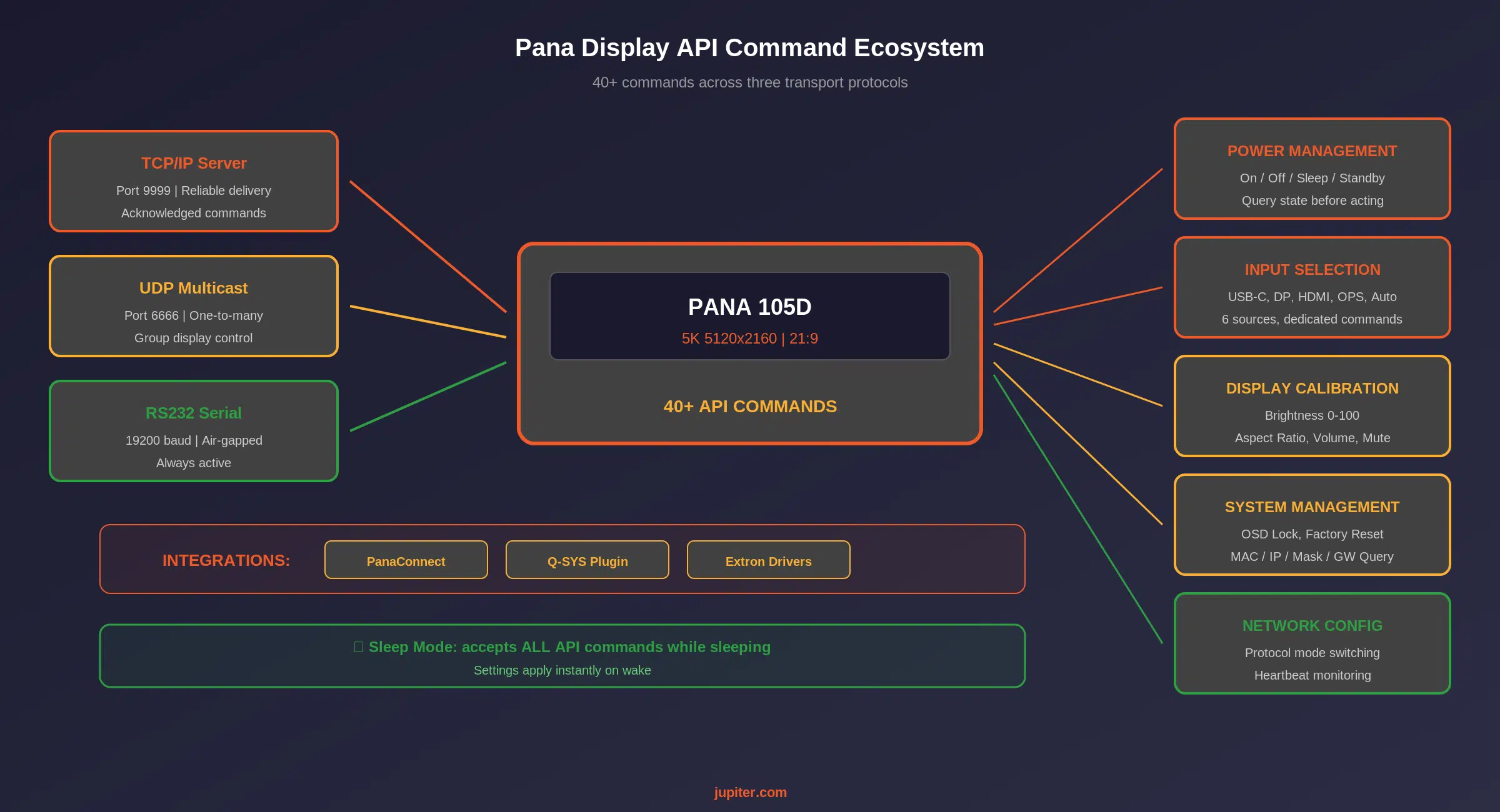
Jupiter Systems’ Pana 21:9 ultrawide displays expose over 40 discrete API commands across TCP/IP, UDP/IP, and RS232 serial interfaces. This is not a token nod toward integration. It is a complete control framework designed for the way enterprise AV teams actually work.
Three Transport Protocols: TCP, UDP, and RS232
Different environments require different communication pathways. A corporate campus with IP infrastructure everywhere will use TCP/IP. A government facility with air-gapped management networks may rely on RS232 serial. A multicast-style deployment controlling multiple displays simultaneously may prefer UDP. The Pana supports all three from a single set of RJ45 connectors on the display.
TCP/IP Server Mode
TCP/IP Server mode is the recommended configuration for most enterprise deployments. In this mode, the Pana listens on a configurable port (default 9999) and accepts connections from API controllers, building management systems, or custom automation scripts. TCP provides reliable, acknowledged delivery of commands, ensuring that every instruction reaches the display and every response reaches the controller. Connection state is maintained, so controllers can verify display status before issuing commands.
UDP Mode for Group Operations
UDP mode enables one-to-many communication patterns. A single command can reach multiple Pana displays simultaneously, which is essential for environments where dozens of displays need to power on, switch inputs, or adjust brightness in unison. The Pana supports configurable group receive and group send ports, allowing administrators to organize displays into logical groups that respond to different command streams.
RS232 Serial for Isolated Environments
For facilities where IP connectivity is restricted or prohibited, the Pana’s RS232 serial port provides a direct, non-networked control channel. Serial communication uses a standard 19200 baud rate with 8 data bits, 1 stop bit, and no parity. Jupiter provides custom RJ45-to-DB9 adapters, and standard USB-to-DB9 adapters work with any modern computer. Critically, RS232 control remains active even when the Pana’s IP-based network control is disabled, ensuring that facilities with strict network policies always retain physical management access.
The Complete Command Set
The Pana API is organized around the operational parameters that enterprise AV teams need to control. Every command uses a structured hexadecimal format with built-in checksum validation, ensuring data integrity across all three transport protocols.
Power Management
Power commands go beyond simple on and off. The Pana distinguishes between three power states: fully powered on, sleep mode, and standby mode. Enterprise controllers can query the exact power state before issuing commands, preventing conflicts and ensuring predictable behavior.
- Power On / Power Off: Dedicated commands for each state transition, with query capability to confirm current state before acting
- Sleep Mode: In sleep mode, the display stops rendering video but continues to monitor all inputs for active signals and, critically, continues to execute all API commands. This means a building management system can issue brightness adjustments, input changes, or configuration queries while the display sleeps, and those settings take effect immediately when the display wakes
- Standby Mode: The deepest power state, where only a power-on command from the remote control or API will wake the display. Power consumption drops below 0.5 watts
The distinction between sleep and standby is significant for enterprise deployments. Sleep mode allows facilities management to pre-configure displays during off-hours: adjust brightness for the next shift, change input sources, or update aspect ratios, all without powering the displays fully on. When operators arrive and the displays wake on signal detection, every setting is already in place.
Input Selection
The Pana supports six input sources, each selectable via dedicated API commands: USB-C, DisplayPort, OPS (for models with the OPS slot), HDMI (one port on D models, two on T models), and Auto-select. Each input switch command takes up to eight seconds to execute as the display locks onto the new signal, and during that transition the display will not respond to additional commands, preventing command collisions during input negotiation.
For deployments where source computers change based on shift schedules or operational scenarios, input switching via API means the room controller can reconfigure every display in the space without operator intervention. Combined with a Catalyst or PixelNet processor, this creates a fully automated visualization environment where content routing and display configuration happen in concert.
Display Calibration
Brightness and aspect ratio commands provide precise control over the display’s visual output:
- Brightness: Set to any value from 0 to 100 with per-unit precision. Query the current brightness before adjusting. This enables time-of-day automation: higher brightness during peak hours, lower brightness for night shifts, matched across every display in the room
- Aspect Ratio: Five selectable modes (1:1, 16:9, 21:9 Movie, H Stretch, H/V Stretch) controllable via API. For environments that switch between 16:9 source content and native 21:9 during different operational modes, this eliminates manual menu navigation
- Volume and Mute: Full volume control (0-100) with dedicated mute/unmute commands and status query. Essential for displays in briefing rooms that switch between silent monitoring and active presentations
OSD and System Management
Administrative commands provide the kind of system-level control that IT teams need for remote management:
- OSD Lock/Unlock: Lock the on-screen display to prevent unauthorized settings changes. In shared environments or public-facing installations, this ensures that only API-authenticated controllers can modify display parameters
- Factory Reset: Return the display to factory defaults, useful for redeployment or troubleshooting
- Network Configuration Query: Read the display’s MAC address, IP address, subnet mask, and gateway remotely. For large deployments, this enables automated asset discovery and inventory management
- Protocol Mode Switching: Change between TCP/IP Client, TCP/IP Server, UDP Client, and UDP Server modes via API, without physically accessing the display’s web interface
The Web Configuration Interface
Beyond the hex command API, every Pana display runs a lightweight web-based configuration interface accessible via its IP address. This interface provides a graphical way to set IP parameters, communication ports, network protocol mode (TCP or UDP), heartbeat monitoring, and group communication settings. Authentication uses a simple login, and all changes take effect immediately with an automatic MCU restart.
This web interface is particularly valuable during initial deployment. Integrators can configure network parameters through the browser, verify connectivity, then hand off ongoing management to the API-based automation system. It also serves as a fallback management path when controllers are offline or being reconfigured.
PanaConnect: The Free Integration Testing Tool

One of the most overlooked advantages of the Pana’s API ecosystem is PanaConnect, a free desktop utility that Jupiter provides for API testing and validation. PanaConnect bridges the gap between reading a command reference document and actually deploying automation in production.
What PanaConnect Does
PanaConnect connects to a Pana display over either serial (RS232) or IP (TCP/UDP) and provides a graphical interface to send any command from the full API command set. Select a command from the dropdown, click Send, and immediately see the display respond. The response data appears in the utility’s output panel, so integrators can verify not just that the command executed but what data the display returned.
Editable Command Library
PanaConnect loads its command set from an editable CSV file (PANA_API_COMMANDS.csv). This means integrators can customize the command list: rename commands for clarity, remove commands that are not relevant to their deployment, add custom command sequences, or reorganize the list to match their workflow. The CSV maps human-readable command names to hexadecimal byte sequences, so any command in the Pana firmware can be accessed through the utility.
Why This Matters for Integration Teams
In a typical enterprise AV project, the integration team needs to validate every API command before writing automation code. Without a testing tool, this means writing throwaway scripts, configuring terminal emulators, and manually constructing hex packets. PanaConnect eliminates all of that. An integrator can verify every command the deployment will use in minutes, document the responses, and hand a validated command list to the automation developer. This cuts integration time significantly and reduces the risk of discovering command incompatibilities during commissioning.
Third-Party Controller Ecosystem
The Pana’s API is not an island. Jupiter has partnered with major control system manufacturers to provide pre-built integration modules:
- Q-SYS: A dedicated Jupiter Pana plugin is available through the Q-SYS Alliances & Partnerships program, enabling drag-and-drop integration of Pana display control into Q-SYS designs
- Extron: Control system drivers are available through Extron’s driver download portal, allowing Extron-based rooms to manage Pana displays natively through their existing control infrastructure
For organizations using other control platforms, the well-documented hex command format and standard TCP/IP or RS232 transport make driver development straightforward. The command checksum format is simple: sum all bytes from the Command field through the Parameter field, take the lower 8 bits, and append as the final byte.
Multi-Display Group Operations
Enterprise deployments rarely involve a single display. Operations centers may deploy four, eight, or more Pana displays in combination. The Pana’s API addresses multi-display management through several mechanisms:
- UDP Group Communications: Configure multiple Panas with the same group receive port and send commands to all of them simultaneously. Power on an entire room of displays with a single command
- Heartbeat Monitoring: Enable heartbeat responses and the Pana periodically sends its IP address to the controller, confirming the display is alive and reachable. For 24/7 operations centers, this provides continuous health monitoring without polling
- Individual Addressing: Every Pana has a unique IP address and MAC address, both queryable via API. Controllers can maintain a complete inventory of all displays and issue targeted commands to individual units when needed
- DisplayPort MST Daisy-Chaining: The Pana supports DP MST output, allowing one display to feed video to a second display via a single DisplayPort cable. Combined with Clone Display mode, a single source can drive two Pana displays with duplicated content. For symmetric monitoring setups, this halves the source hardware requirements
Real-World Integration Scenarios
24/7 Operations Center
A security operations center runs three shifts. Each shift uses different source computers and different brightness levels (day shift at brightness 80, night shift at brightness 30). The building management system sends scheduled API commands: at 06:00, power on all displays, set brightness to 80, switch inputs to day-shift sources. At 22:00, reduce brightness to 30 and switch to night-shift sources. At 02:00, query power state across all displays to confirm uptime. No operator touches a remote control or navigates a menu.
Corporate Lobby
A series of Pana displays in a corporate lobby show branded content during business hours and sleep overnight. The room controller powers displays on at 07:00 and sends them to sleep at 20:00. The OSD is locked to prevent visitors from accidentally changing settings. Once a quarter, the IT team remotely queries all display IP addresses and MAC addresses for asset inventory reconciliation, without visiting the lobby.
Government Briefing Room
A classified briefing room uses Pana 105D displays with RS232 serial control only, no IP connectivity permitted. The room controller switches inputs based on which secure workstation the briefer selects. Aspect ratio toggles between 21:9 for intelligence dashboards and 16:9 for pre-recorded video briefings. All commands travel over a dedicated serial cable, physically isolated from every network in the building.
Conclusion
An enterprise display is not just a screen. It is a managed endpoint in a larger automation ecosystem. The depth of a display’s API determines how seamlessly it integrates into that ecosystem, how much manual intervention operators must perform, and how reliably the system operates over years of continuous service.
Jupiter’s Pana 21:9 ultrawide displays deliver over 40 API commands across TCP/IP, UDP, and RS232, with a web configuration interface, a free testing utility, pre-built plugins for major control platforms, group communication for multi-display management, and sleep-mode command execution for off-hours automation. For enterprise AV teams who need displays that work within their infrastructure rather than alongside it, the Pana’s API depth is a decisive differentiator.
Contact Jupiter Systems to discuss API integration for your deployment.


