
Your video wall, one minute at a time
Set up, control and get more from Canvas, Catalyst, J-Series, J4, PixelNet, StreamPoint, Pana and Zavus XP. Pick a topic, press play, and watch every step happen on screen.
No video matches that search yet. Try another word, or ask our team.
How it all fits together
 1:06
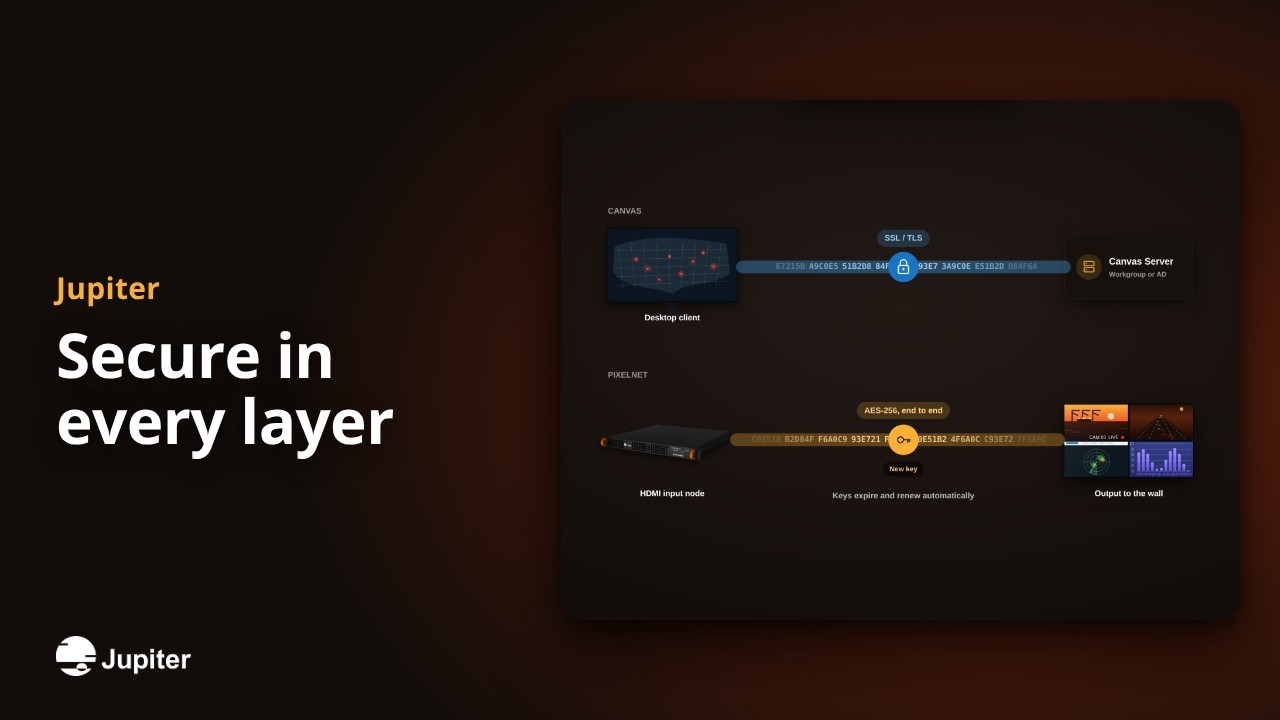
1:06Secure in every layer
From who can sign in to how video travels, Jupiter control room systems are built for places where security is not optional.
Watch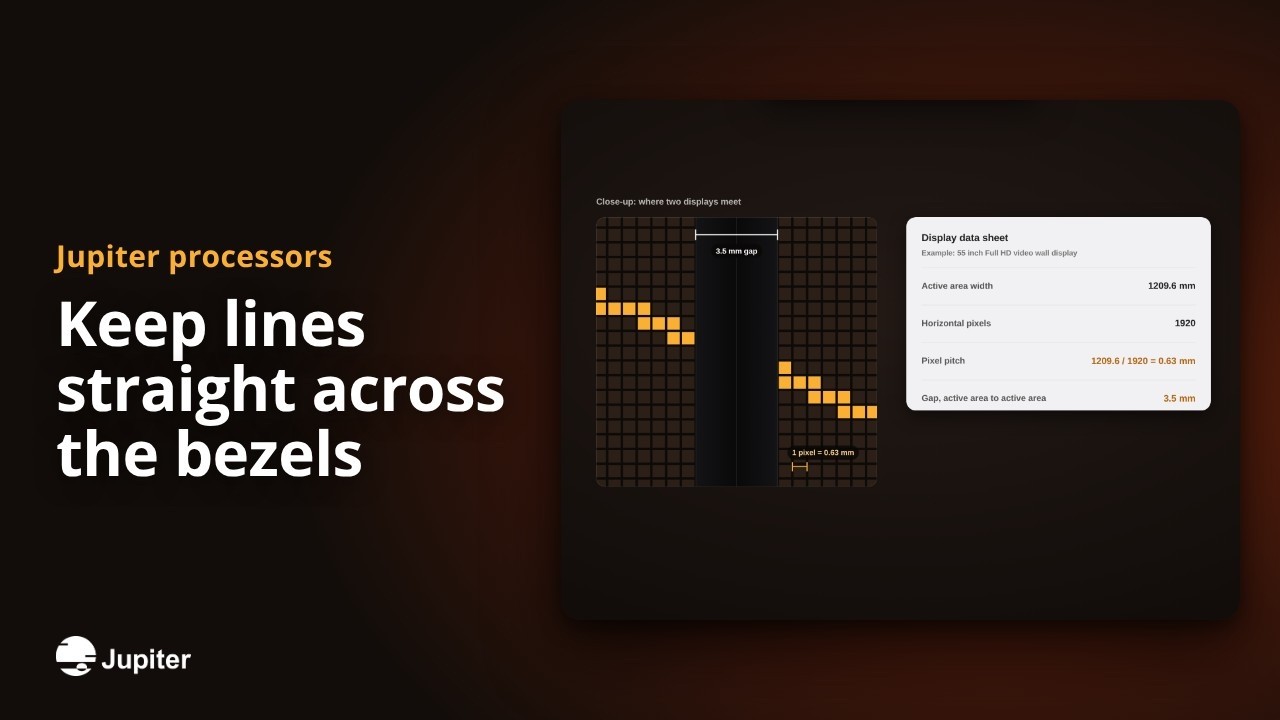 1:04
1:04Keep lines straight across the bezels
Bezel compensation hides the pixels behind each display frame, so circles stay round and lines run straight across the wall.
Watch 1:04
1:04From camera to control room
StreamPoint, Catalyst and Canvas working together: remote cameras on the wall, and on every desk that needs them.
Watch 1:04
1:04Six markets, one video wall family
From defense command centers to airport lobbies, Jupiter processors, displays and software are built for rooms where the picture matters.
Watch 1:04
1:04Mission-ready walls for defense
Secure, certified video walls for bases, tactical operations centers and training rooms, built to run 24/7.
Watch 1:04
1:04Round-the-clock situational awareness
Security operations and traffic centers see hundreds of live cameras on one wall, share them with the team and keep running 24/7.
Watch 1:04
1:04See the whole grid on one wall
Power, water and energy control rooms bring SCADA, grid maps and live video together on one wall that runs 24/7.
Watch 1:04
1:04Teach in the room and online
Lecture halls, auditoriums and classrooms put slides, cameras and remote students on one bright canvas that anyone can run.
Watch 1:04
1:04Boardrooms that help leaders decide
Boardrooms, briefing centers and trading floors show live data, video calls and presentations together, run by anyone.
Watch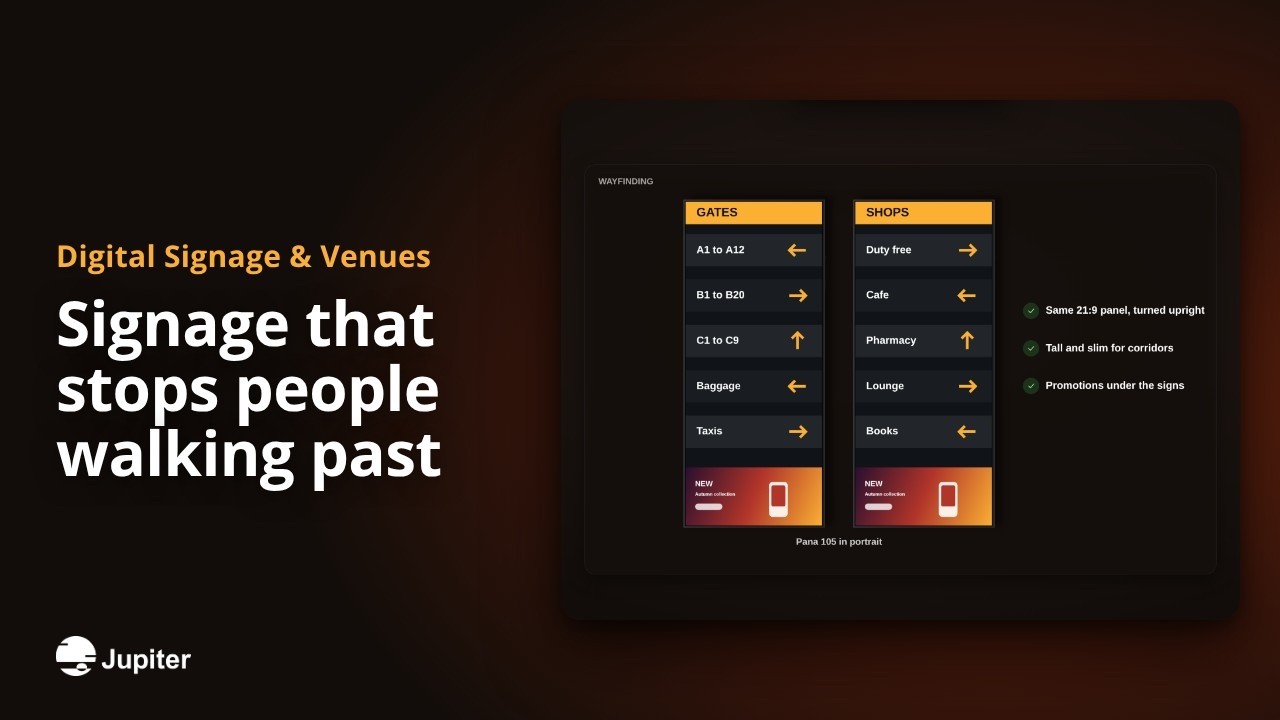 1:04
1:04Signage that stops people walking past
Airports, flagship stores and stadiums run bright LED and LCD walls all day, from a single screen to a whole venue.
Watch 1:04
1:04One family, native 5K everywhere
Jupiter processors, Pana displays and Zavus XP LED walls all speak the same ultrawide 5120 x 2160 language.
Watch 1:04
1:04Build a video wall for your NOC
Six questions to answer before you buy, so your network operations center wall works on day one and on the worst day.
Watch 1:04
1:04Meet the Jupiter processor family
Jupiter makes three families of video wall processors. Here is what each one is for.
Watch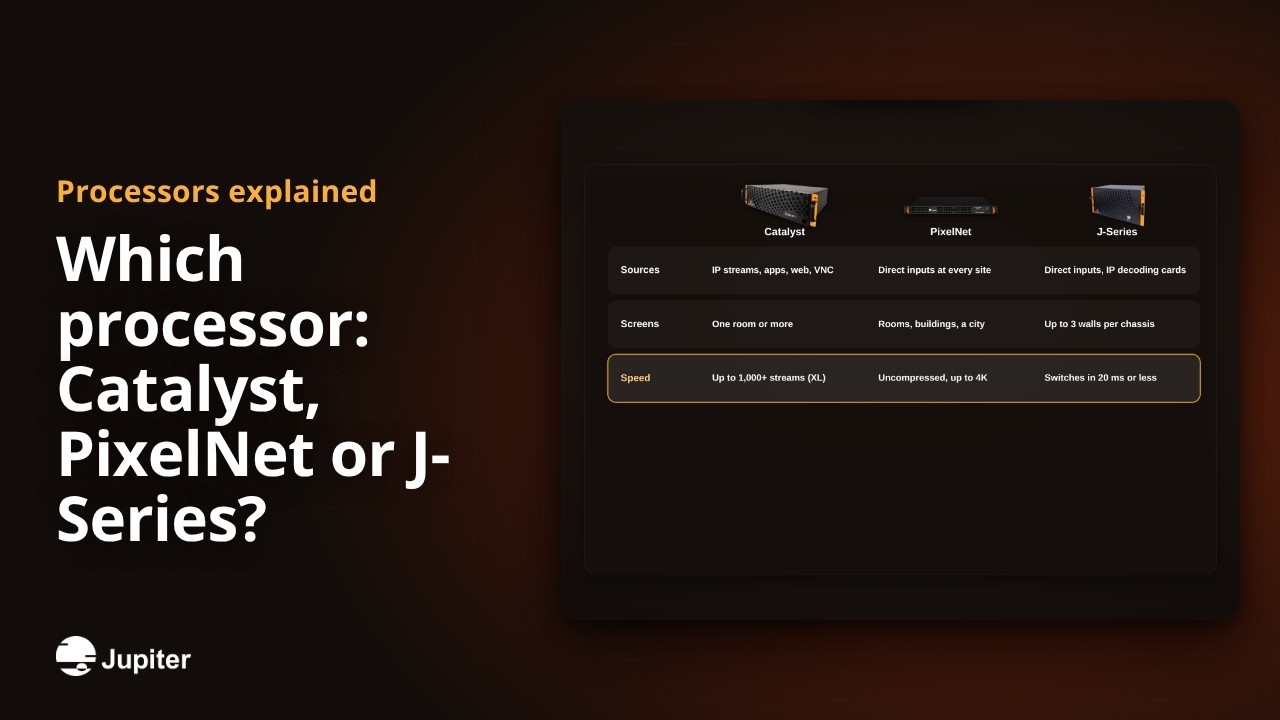 1:04
1:04Which processor: Catalyst, PixelNet or J-Series?
Five simple questions point you to the right Jupiter processor family.
Watch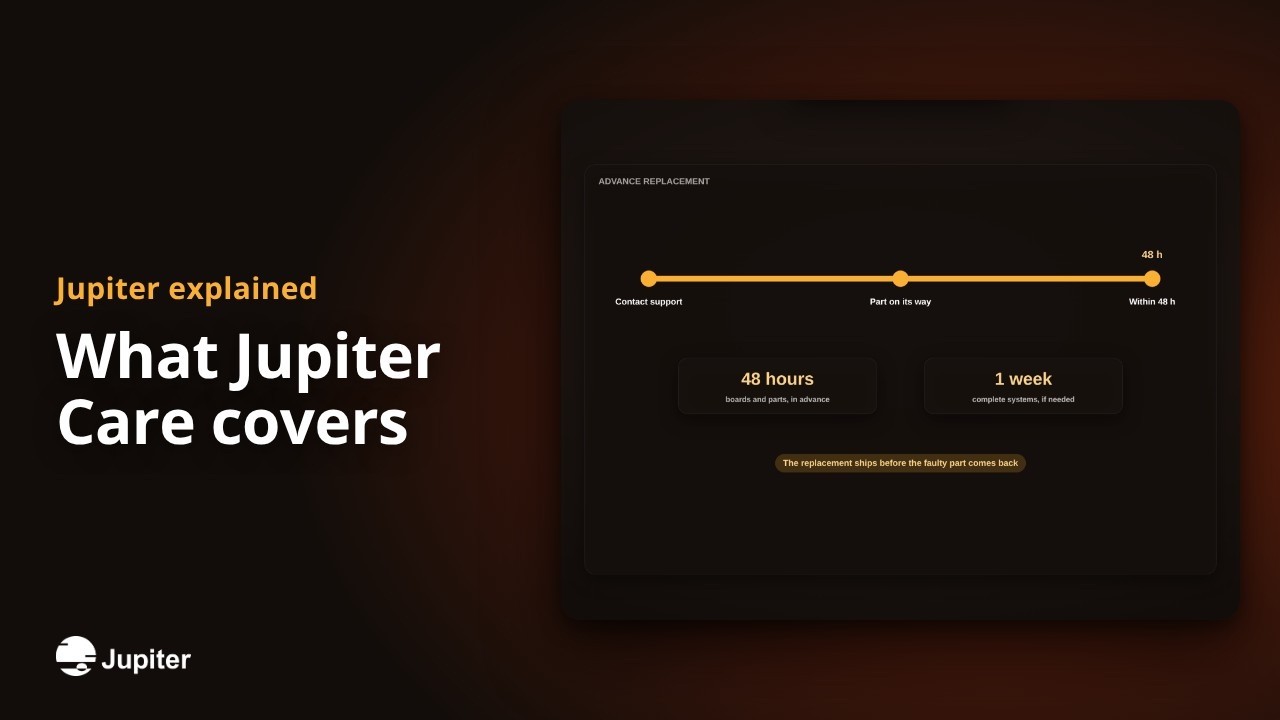 1:04
1:04What Jupiter Care covers
Jupiter Care brings hardware warranty, software support and updates for Jupiter processors into one plan.
Watch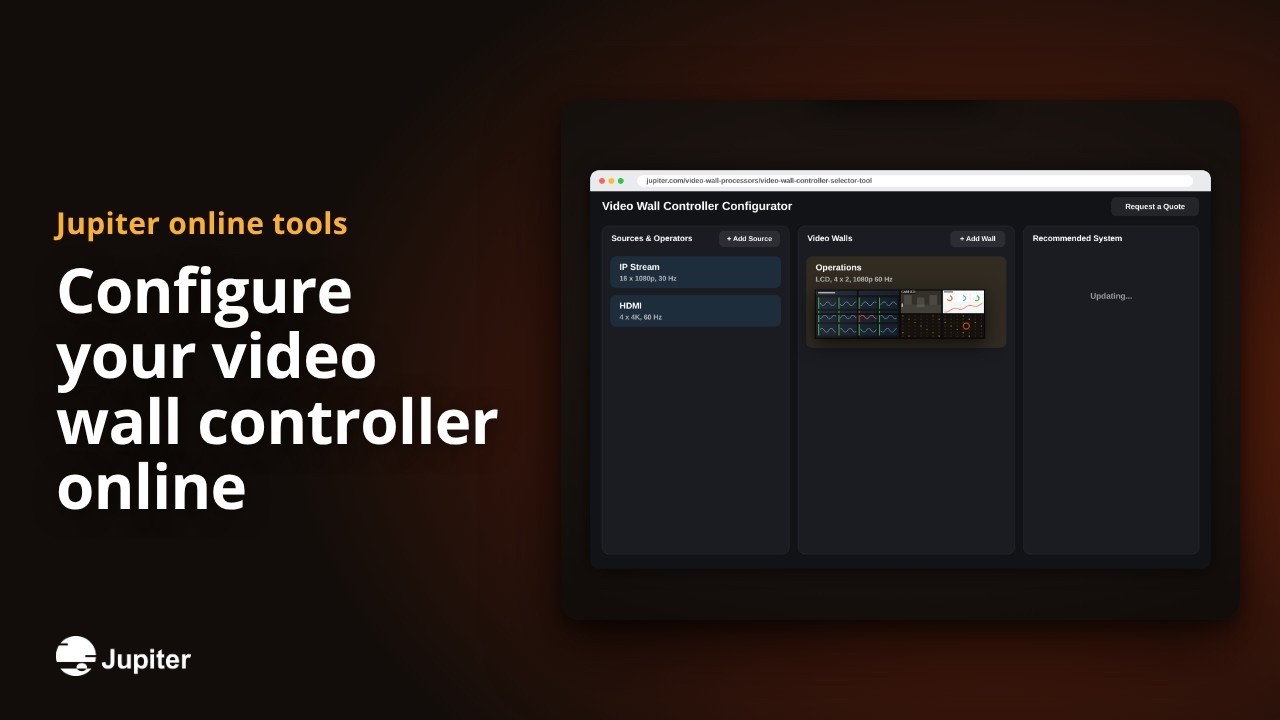 1:04
1:04Configure your video wall controller online
The Jupiter Video Wall Controller Configurator turns your sources and walls into a first system recommendation, in a few clicks.
WatchVideo wall software in action
 1:14
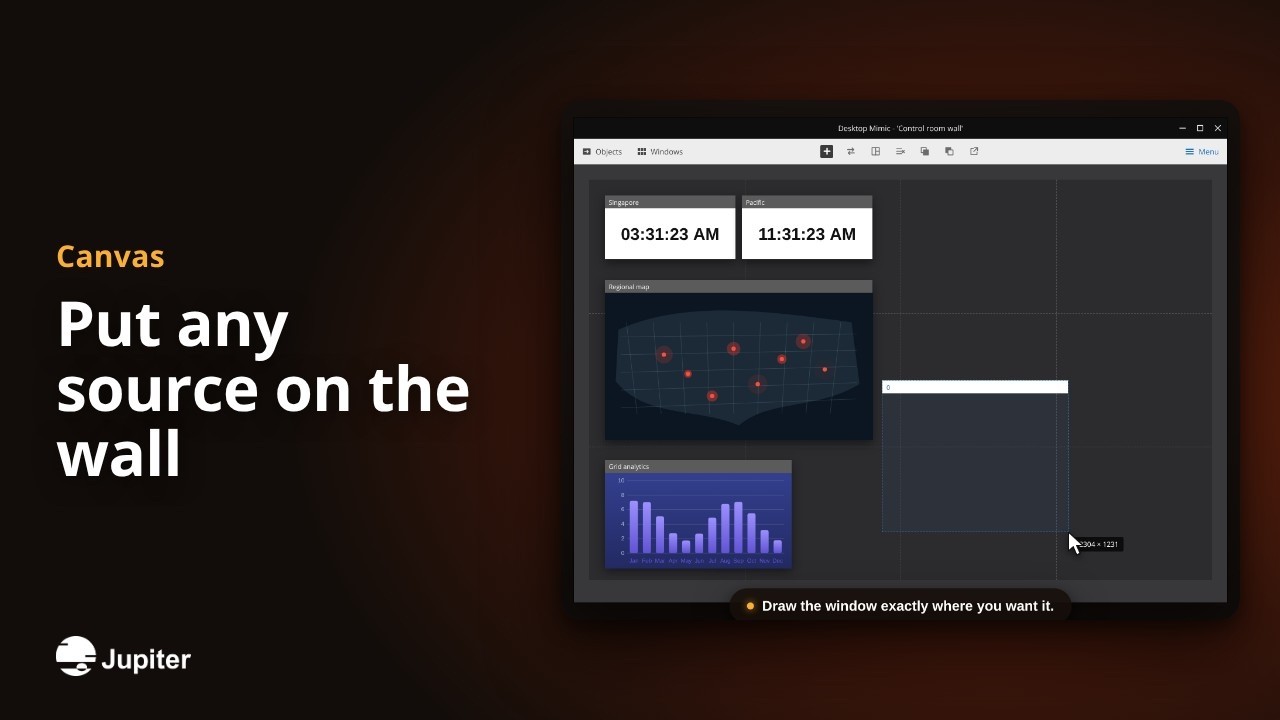
1:14Put any source on the wall
Live video, applications, web pages and data, placed in seconds from one Mimic.
Watch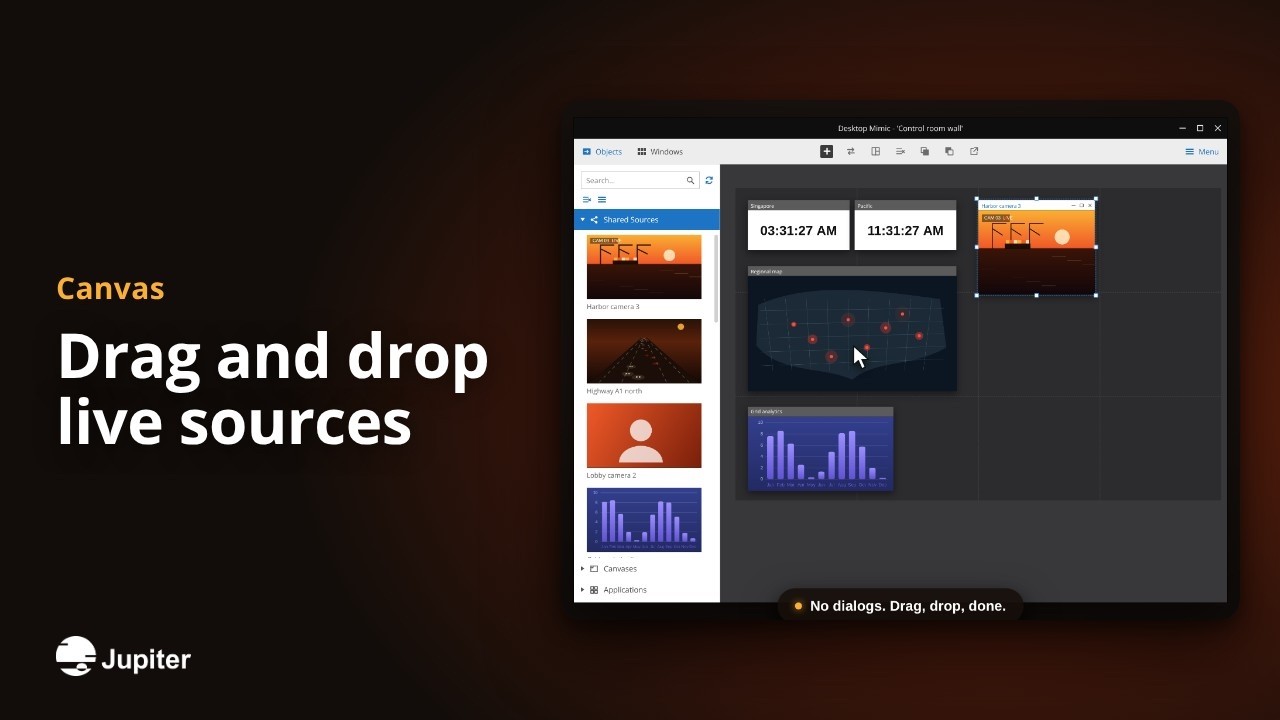 1:09
1:09Drag and drop live sources
Every camera, canvas, application, web page and clock, previewed live and one drag away from the wall.
Watch 1:16
1:16Switch the whole wall in one click
Save any arrangement of your wall as a layout, then bring it back instantly from the Mimic, a button page or your keyboard.
Watch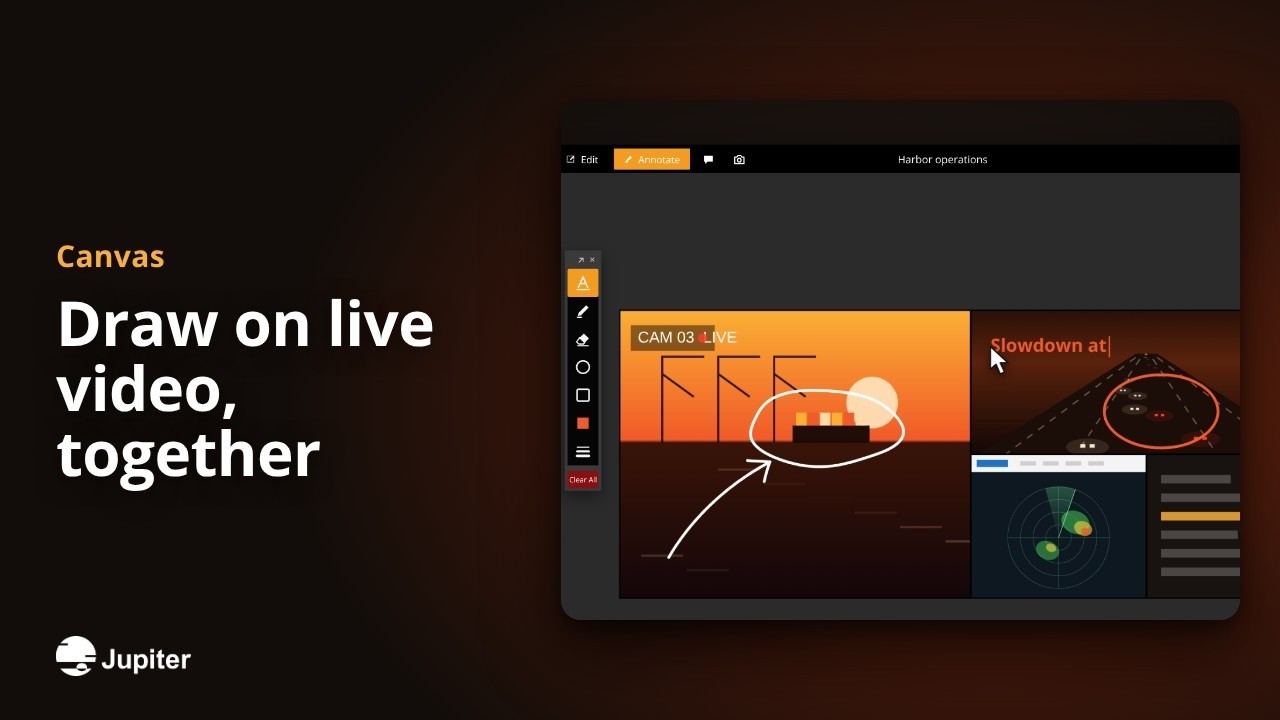 1:13
1:13Draw on live video, together
Circle it, point at it, write on it and chat about it, right on top of live sources, while everyone on the canvas watches it happen.
Watch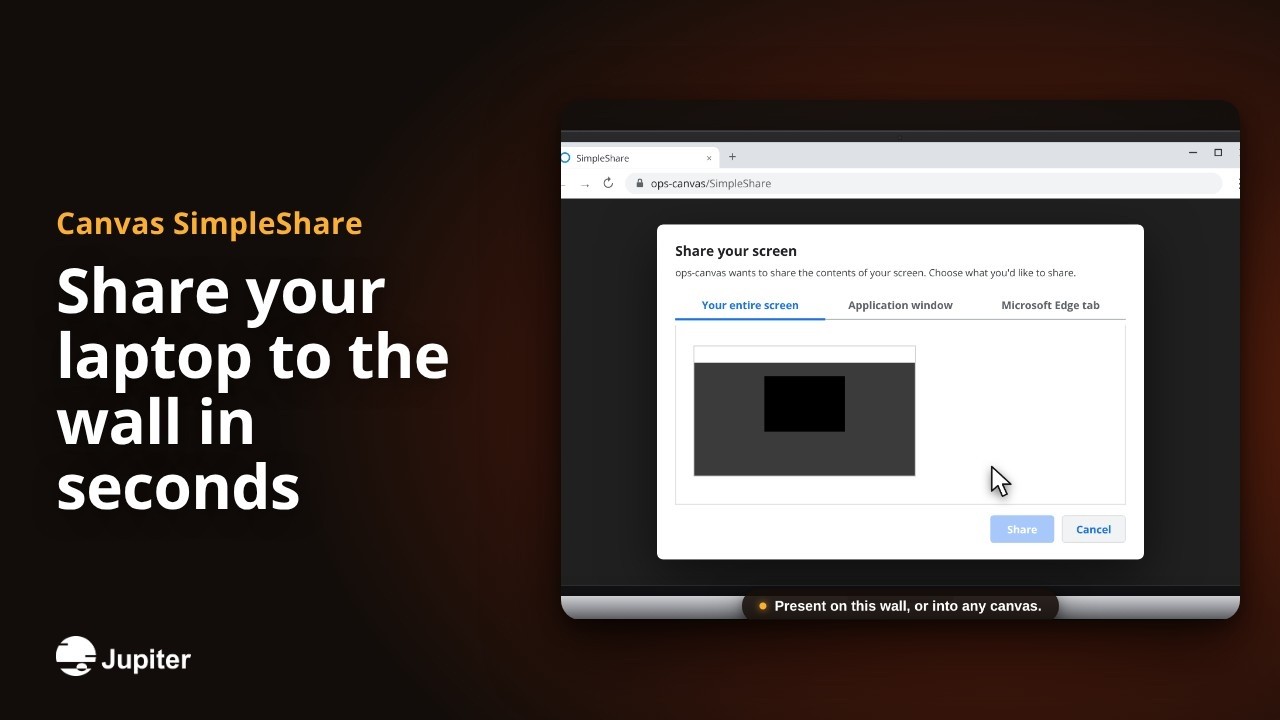 1:12
1:12Share your laptop to the wall in seconds
Anyone in the room, guests included, can put their screen, one app or one browser tab on the video wall. All from a web browser.
Watch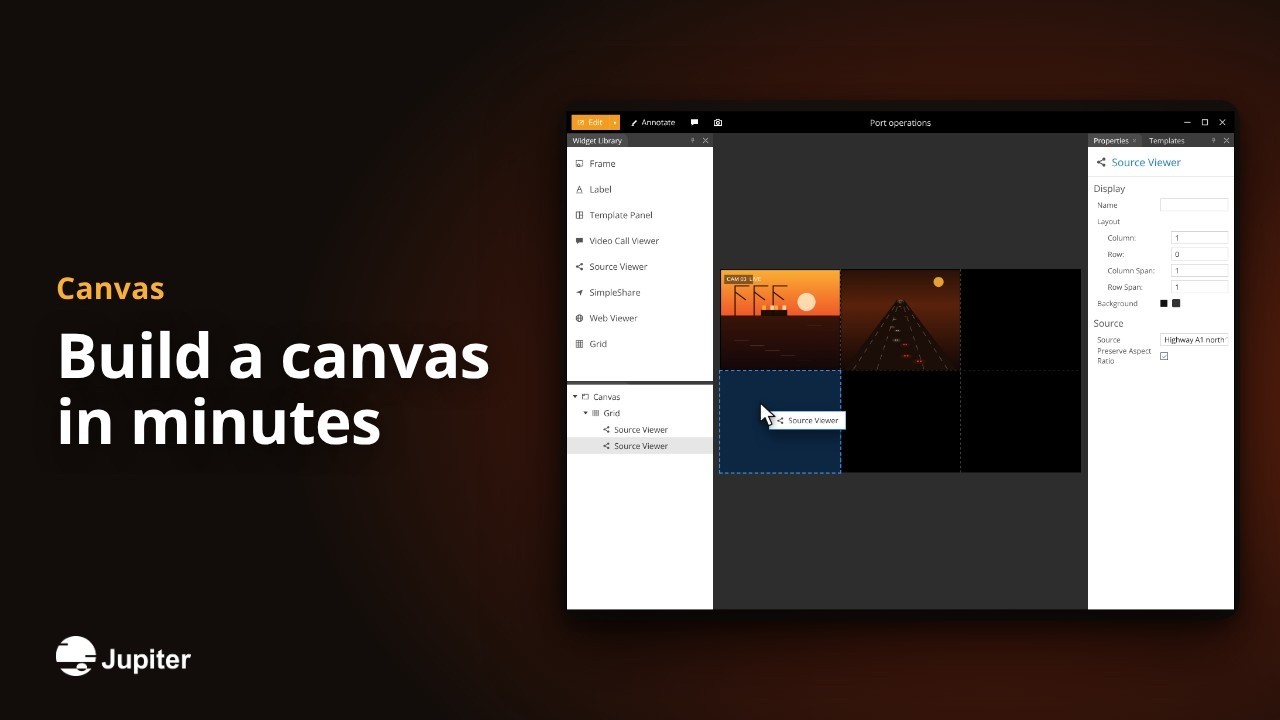 1:19
1:19Build a canvas in minutes
Drag in a grid, live cameras, web dashboards, labels and frames, then save the whole design as a template your team can reuse.
Watch 1:12
1:12Take control of any PC from your desk
Open a shared computer as a live window, then drive it with your own keyboard and mouse. No walking to the equipment room.
Watch 1:16
1:16Decide who sees what
Roles, accounts and permissions put every canvas, source and wall in the right hands. Nobody sees anything until you allow it.
Watch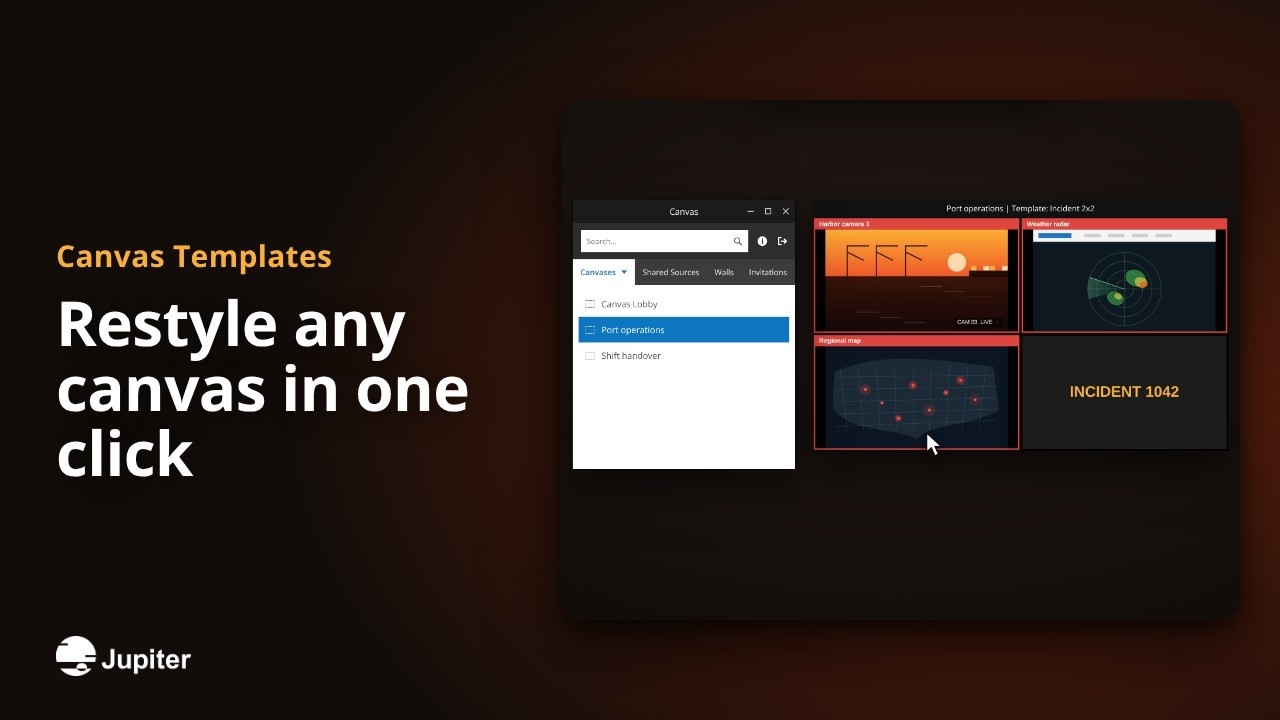 1:12
1:12Restyle any canvas in one click
Templates store a whole canvas design. Apply one and the grid, windows, labels and frames all change at once, on every screen showing that canvas.
Watch 1:10
1:10Put any web page on the wall
Dashboards, web apps and live sites become shared sources, cropped to the part that matters and refreshed automatically.
Watch 1:04
1:04Every wall, in any browser
No install needed. Sign in from a browser and control every video wall on the Canvas system, from anywhere on the network.
Watch 1:10
1:10Capture the whole canvas in one click
One click saves the canvas, every annotation, each source and the chat into a single folder, ready for reports and reviews.
Watch 1:12
1:12Use the accounts you already have
Canvas signs people in with their domain accounts and maps Active Directory groups to roles, so access follows your directory.
Watch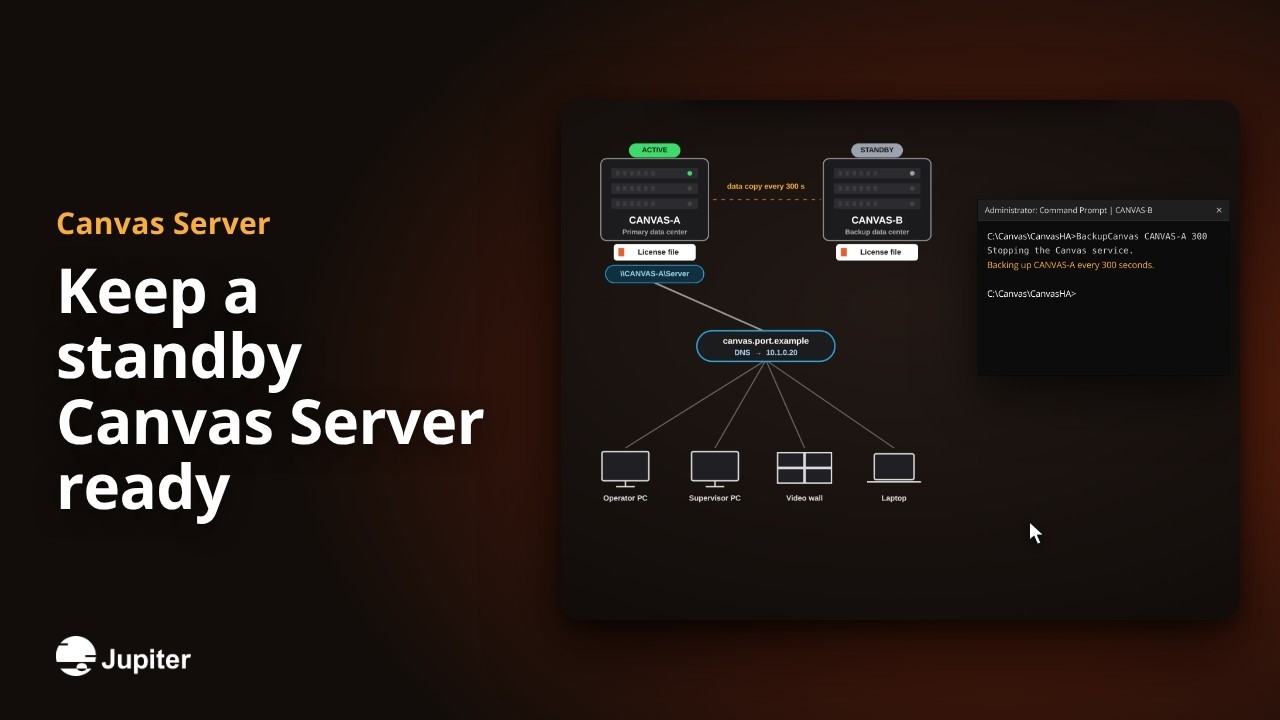 1:10
1:10Keep a standby Canvas Server ready
A second Canvas Server copies the active one on a schedule, so a server failure becomes a short switch-over, not an outage.
Watch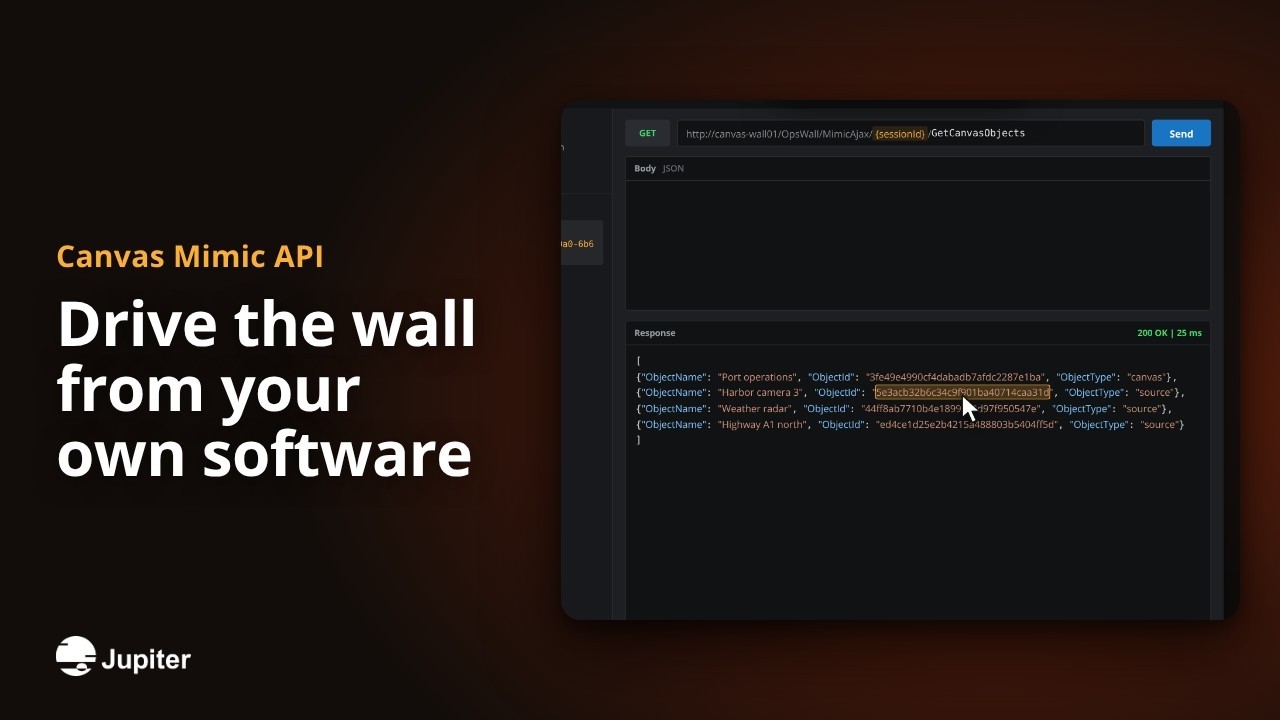 1:10
1:10Drive the wall from your own software
The Canvas Mimic API lets any control system or in-house app open sources, move windows and recall layouts over HTTP or serial.
Watch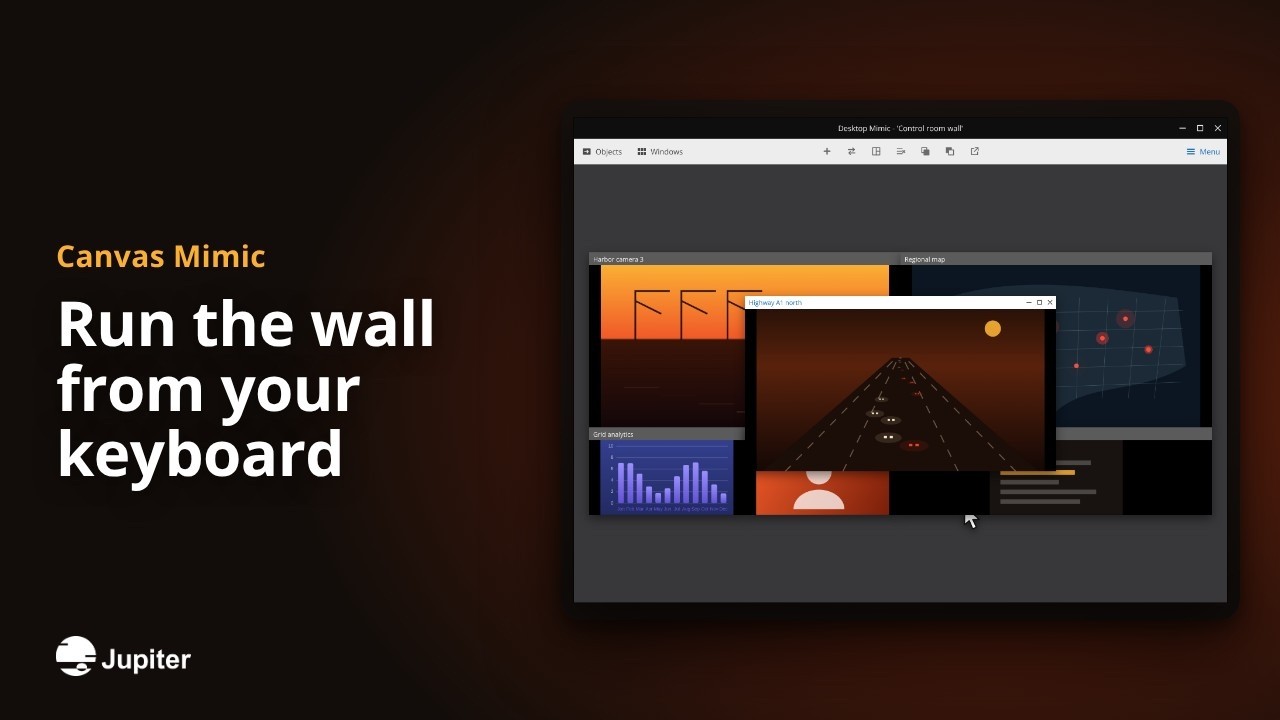 1:02
1:02Run the wall from your keyboard
Six keyboard shortcuts open, swap, stack, clear and recall everything on the wall without reaching for the mouse.
Watch 1:02
1:02Find any source in seconds with tags
Group cameras, web pages and inputs under simple tags, then filter hundreds of sources down to the few you need.
Watch 1:09
1:09Share one live picture
Canvas brings every camera, computer, web page and data feed together and puts it on your video walls, your desk and your browser.
Watch 1:06
1:06Exactly the right access
Roles and permissions decide who can view, edit or annotate each source, canvas and wall. Nothing is shared by accident.
Watch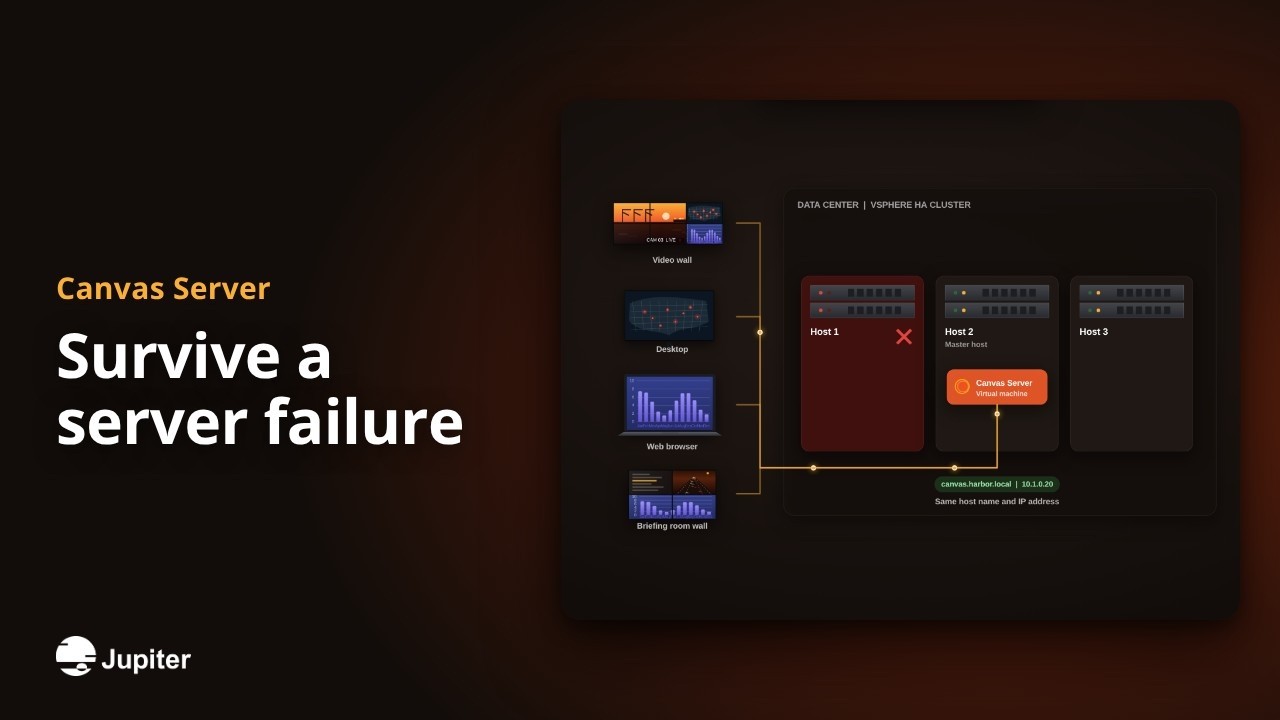 1:03
1:03Survive a server failure
Run the Canvas Server in a VMware vSphere HA cluster. If a host fails, Canvas restarts on another one and every client reconnects on its own.
Watch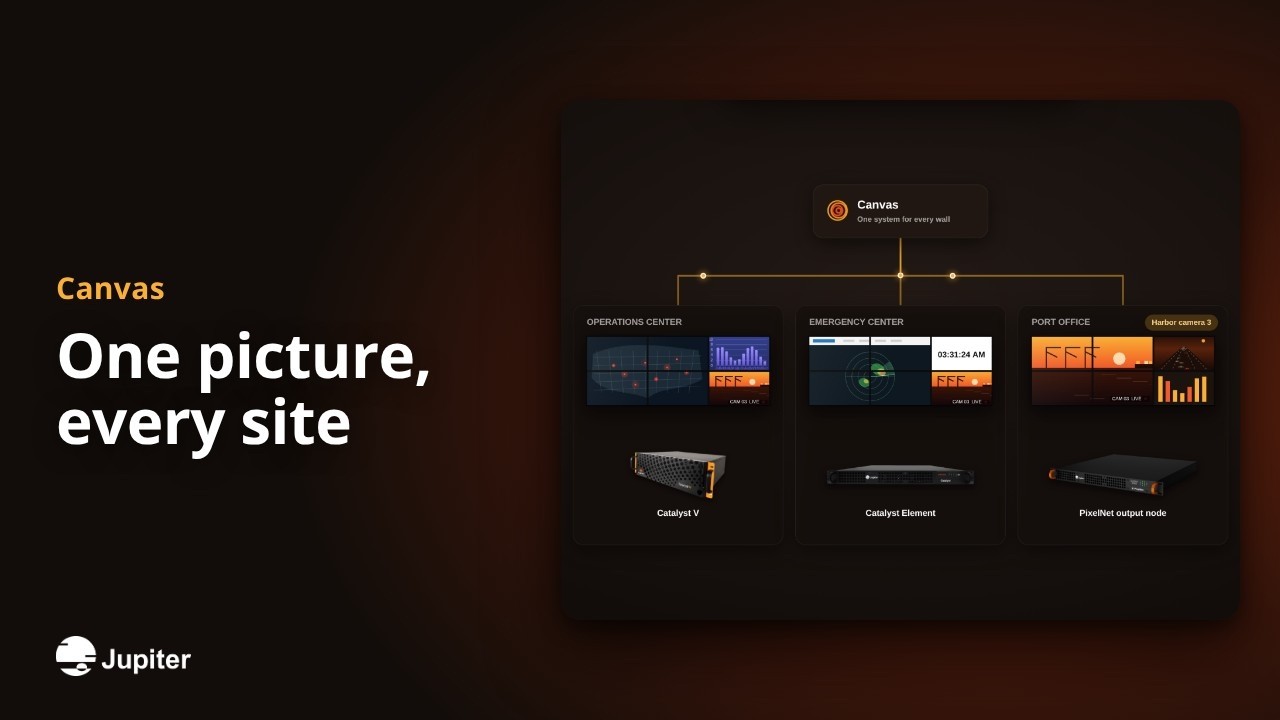 1:03
1:03One picture, every site
Canvas connects your Catalyst and PixelNet video walls, even when they sit in different buildings, across a campus or in another city.
Watch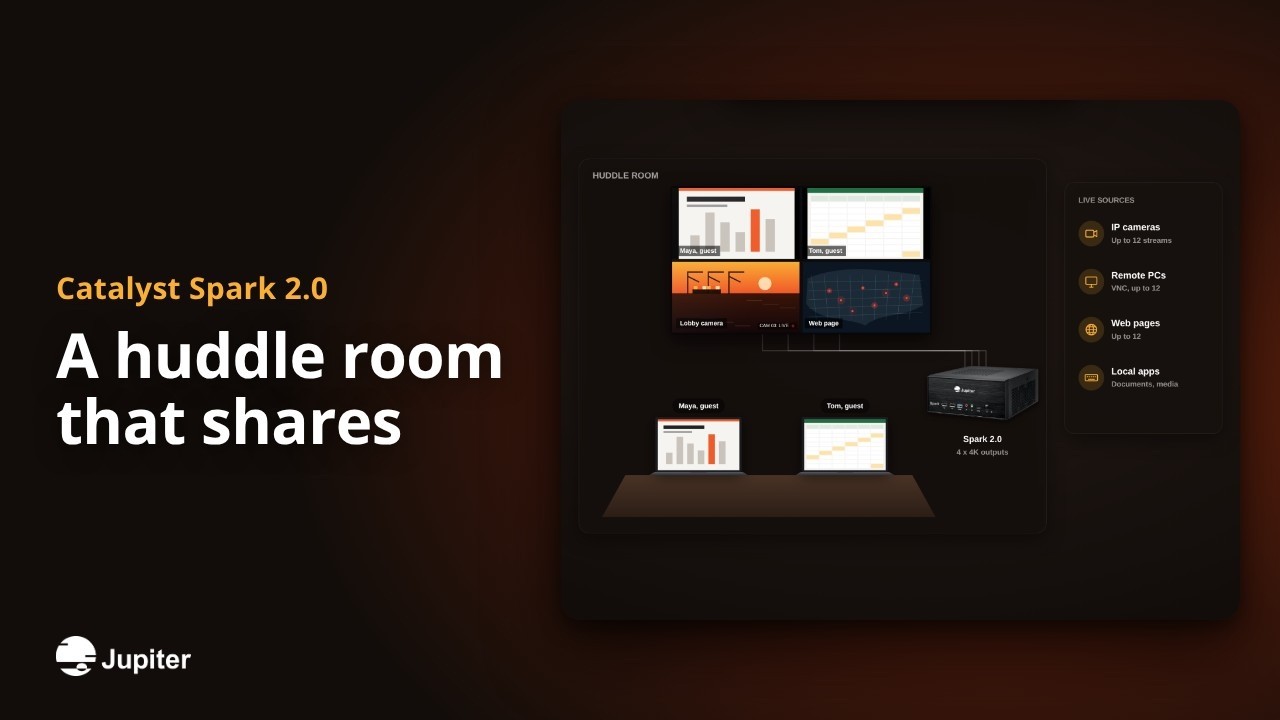 1:04
1:04A huddle room that shares
A compact Catalyst processor running Canvas turns a small room into a collaboration space: guests share their laptops, live sources join in and remote colleagues see it all.
Watch 1:04
1:04Run Canvas walls from Security Center
The Jupiter plugin brings Canvas video walls into Genetec Security Desk: drag cameras to the wall, manage layouts and control access in one place.
Watch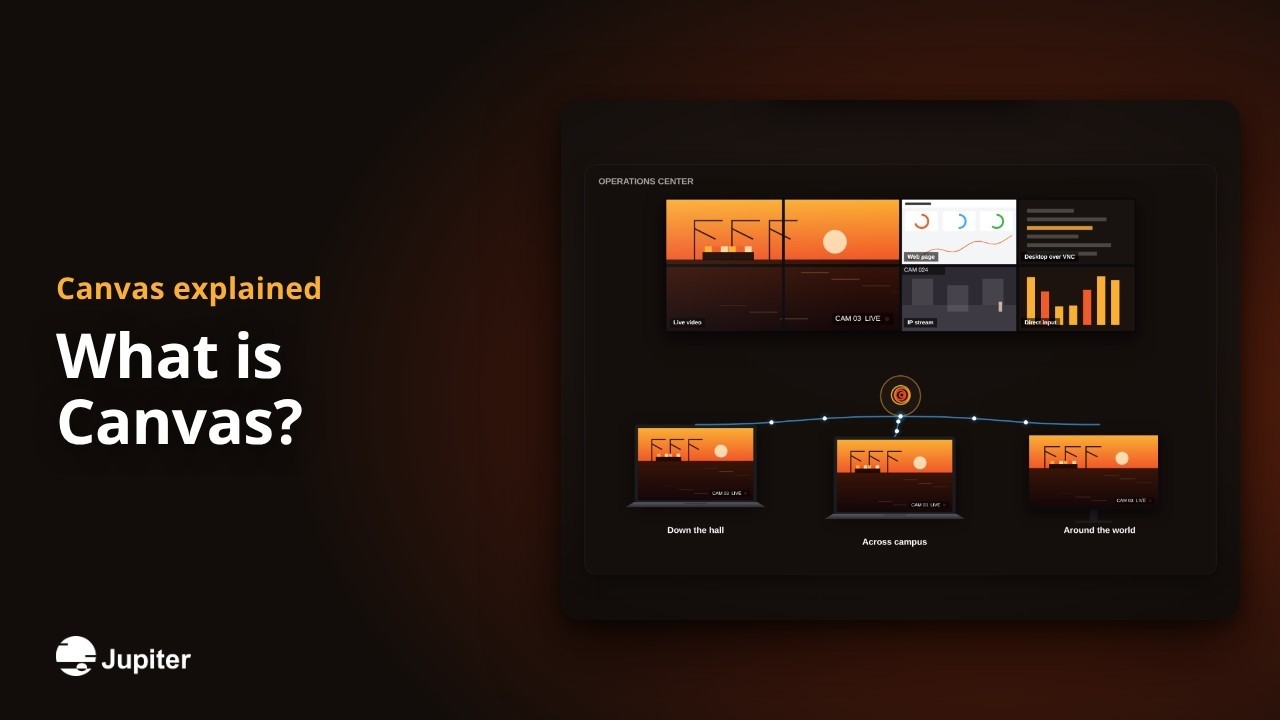 1:04
1:04What is Canvas?
Canvas is Jupiter's visualization software: it puts any source on any wall and shares it with the people who need it, wherever they are.
Watch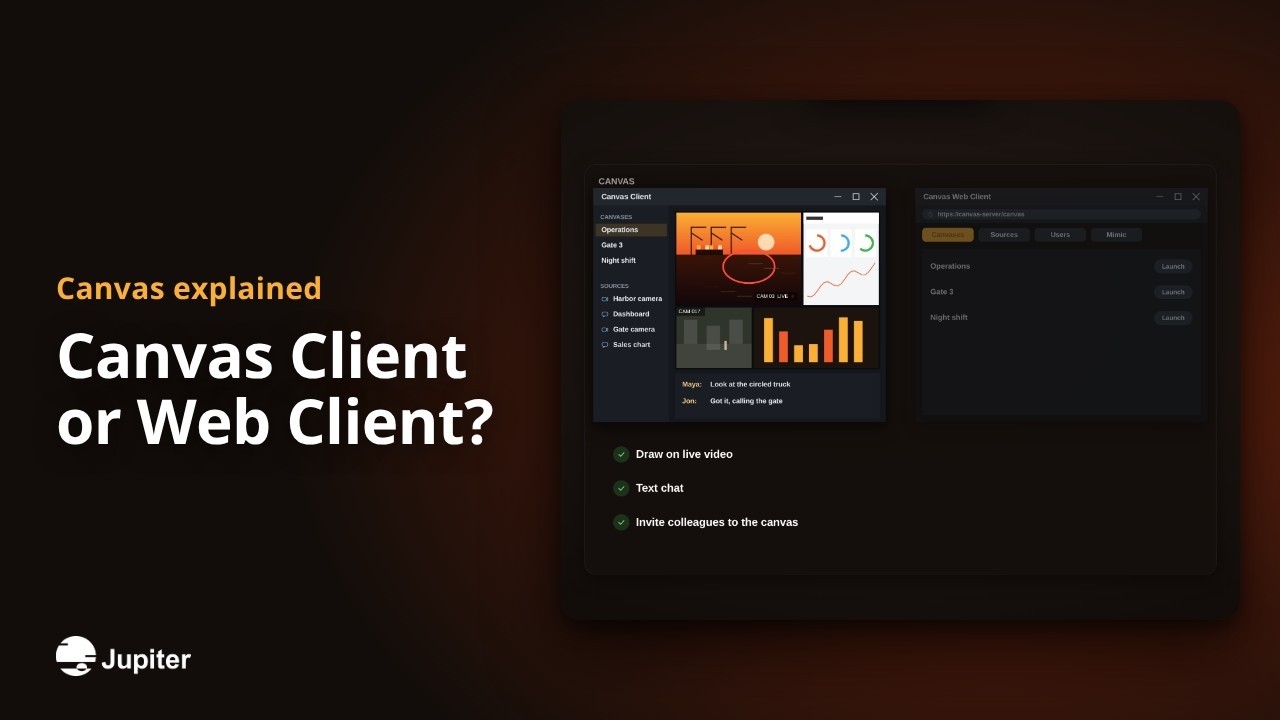 1:04
1:04Canvas Client or Web Client?
Canvas comes with two ways in: a Windows application for designing and collaborating, and a web portal for administration and wall control.
Watch 1:04
1:04What sits behind Canvas
A Canvas system has a few simple building blocks: a server, the processors, the clients, Mimic and an API. Here is how they fit.
Watch 1:04
1:04One Canvas for Catalyst and PixelNet
Canvas was created for both Jupiter processor families, so every wall on your site can run as one system.
Watch 1:04
1:04What is Catalyst?
Catalyst processors combine video wall hardware with a Windows PC, so live video, IP streams and apps share one wall.
Watch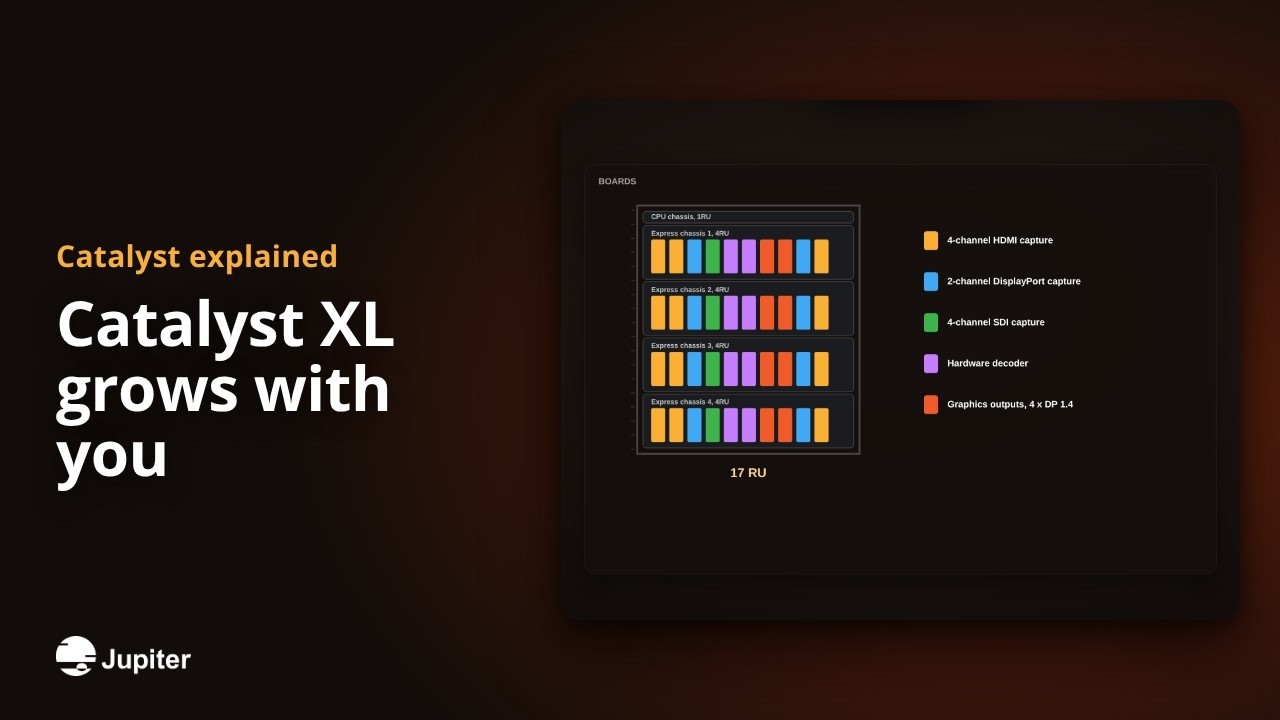 1:04
1:04Catalyst XL grows with you
Catalyst XL pairs a 1RU CPU chassis with one to four Express chassis, so it grows as your control room does.
Watch 1:04
1:04SPARK 1: a 4K controller that sits by the display
SPARK 1 is a compact Catalyst controller with Canvas for a single 4K display, small enough to mount right behind it.
Watch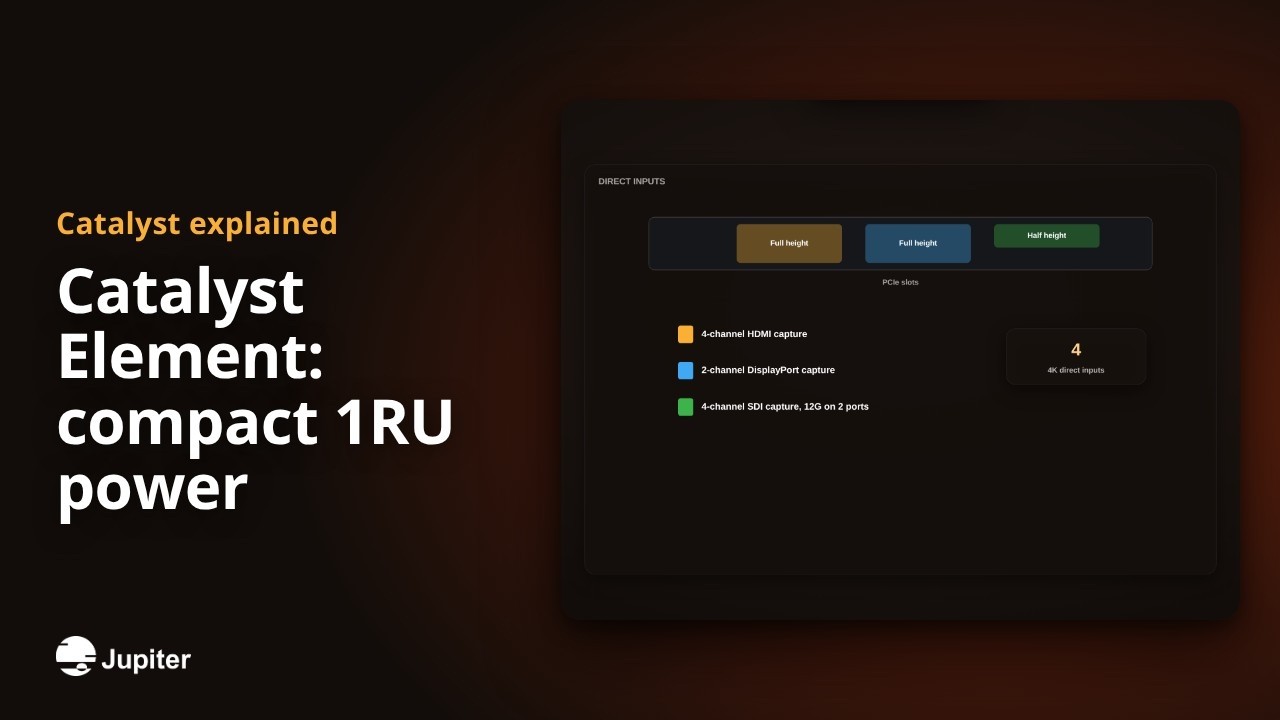 1:04
1:04Catalyst Element: compact 1RU power
Catalyst Element packs Xeon processing, up to 8 outputs and 16 IP streams into a single rack unit.
Watch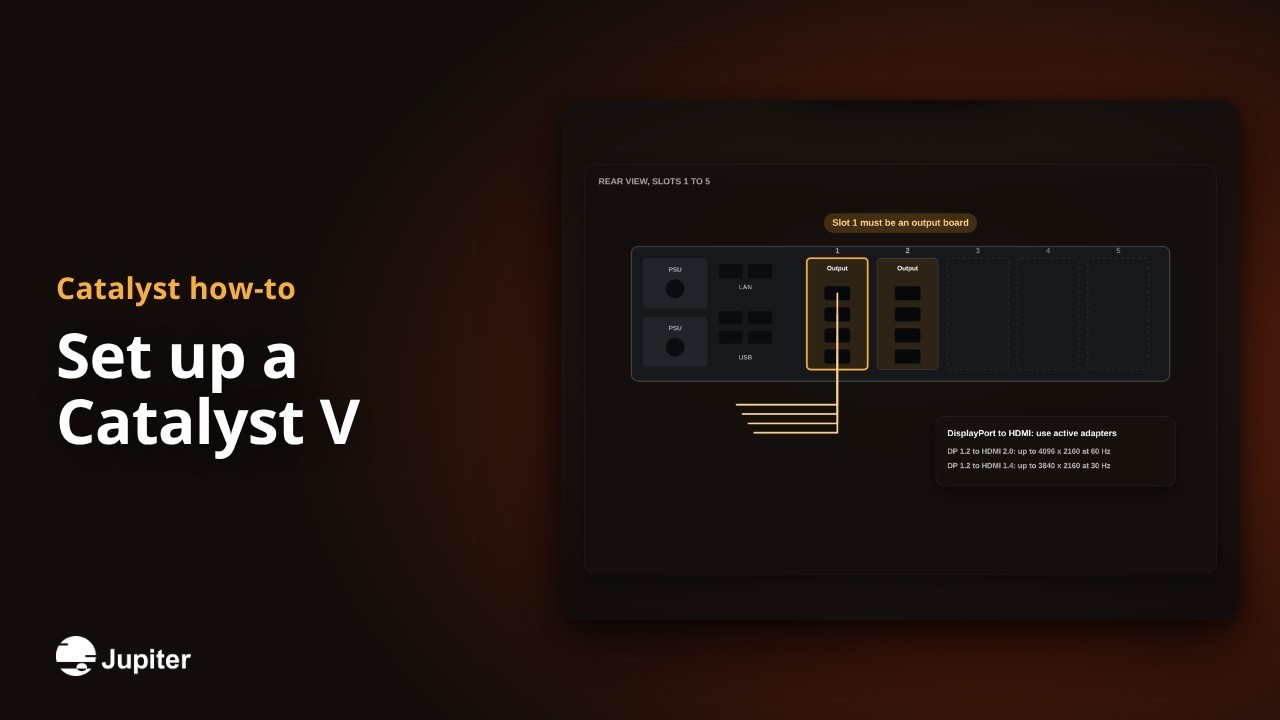 1:04
1:04Set up a Catalyst V
From the box to a working wall: rack it, cable it, power it up and map your displays.
Watch 1:04
1:04Cable a Catalyst XL with Express chassis
The order that matters when you connect a Catalyst XL CPU chassis to its Express Fabric chassis.
Watch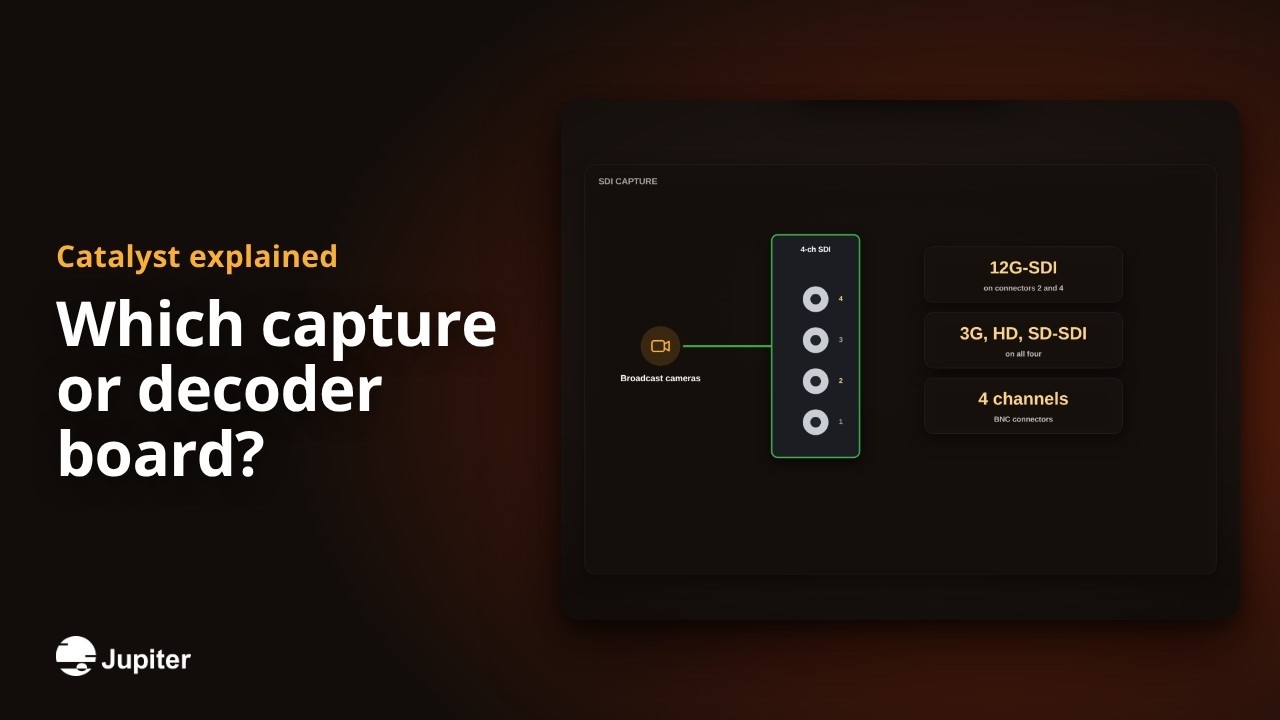 1:04
1:04Which capture or decoder board?
Catalyst processors take sources through capture and decoder boards. Here is which board fits which source.
Watch 1:04
1:04Service a Catalyst without downtime
Catalyst XL is built with redundancy, so most service happens while the wall keeps running.
WatchHardware processing, no operating system
 1:13
1:13Bring IP cameras onto the wall
Add network cameras and StreamPoint encoders as sources in a minute, then drop them on the wall next to every other input.
Watch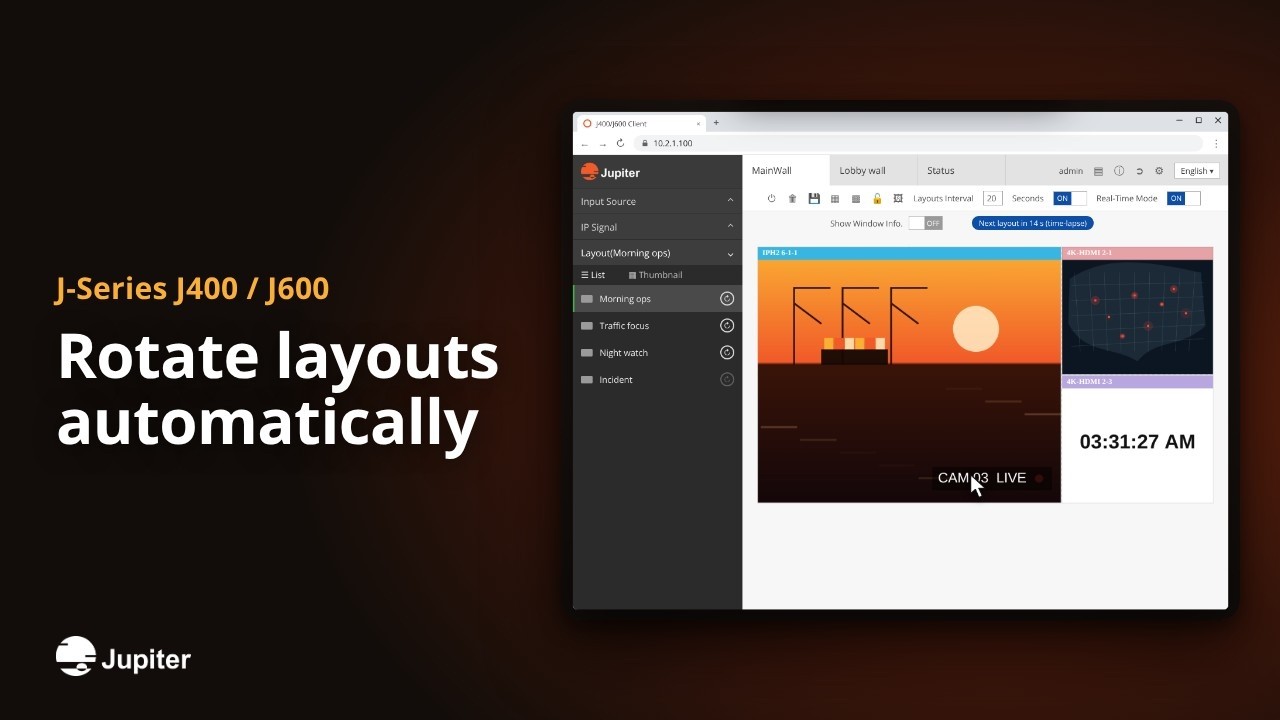 1:10
1:10Rotate layouts automatically
Save your favourite wall layouts, choose which ones rotate and set the timing. The wall changes on its own, all day.
Watch 1:16
1:16Crop, rename and label any source
Zoom into the part of a screen that matters, give every input a clear name and stamp labels or logos right on the video.
Watch 1:10
1:10Put your own picture behind the wall
Upload a branded background or a site map once and it fills every gap between the video windows on the wall.
Watch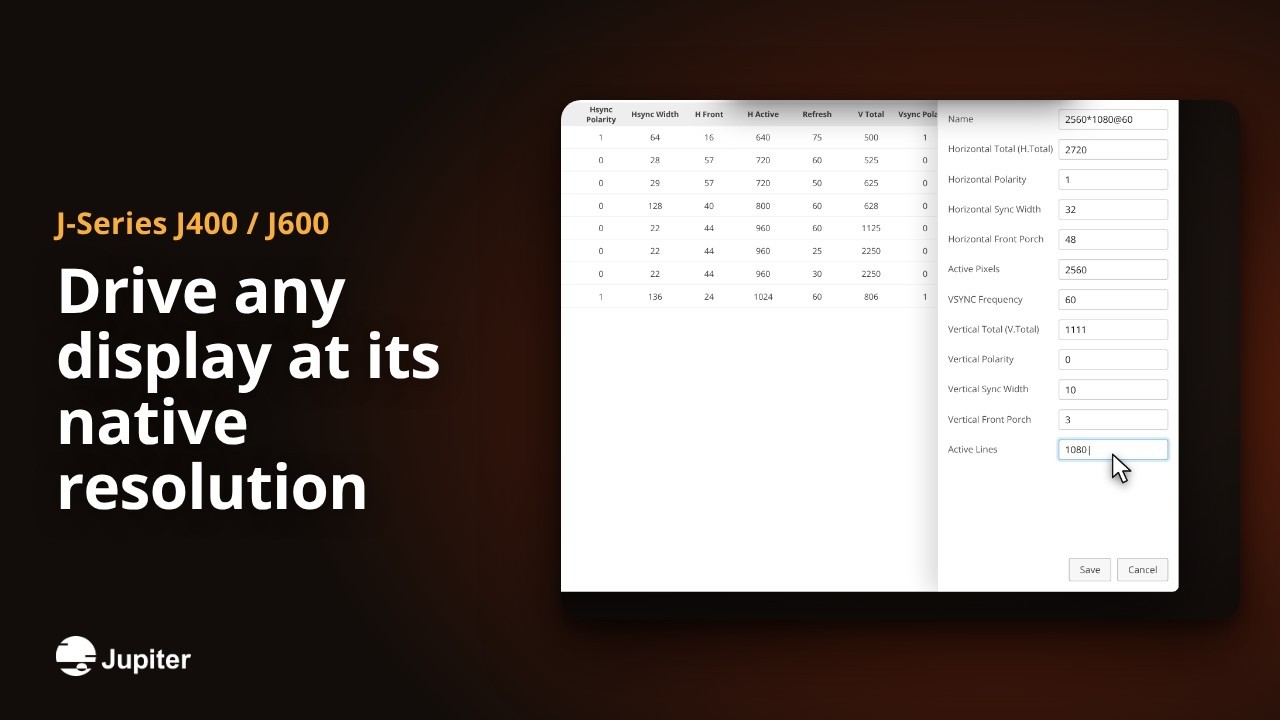 1:10
1:10Drive any display at its native resolution
Create a custom output timing for unusual displays and copy their EDID to your inputs, so every pixel lines up.
Watch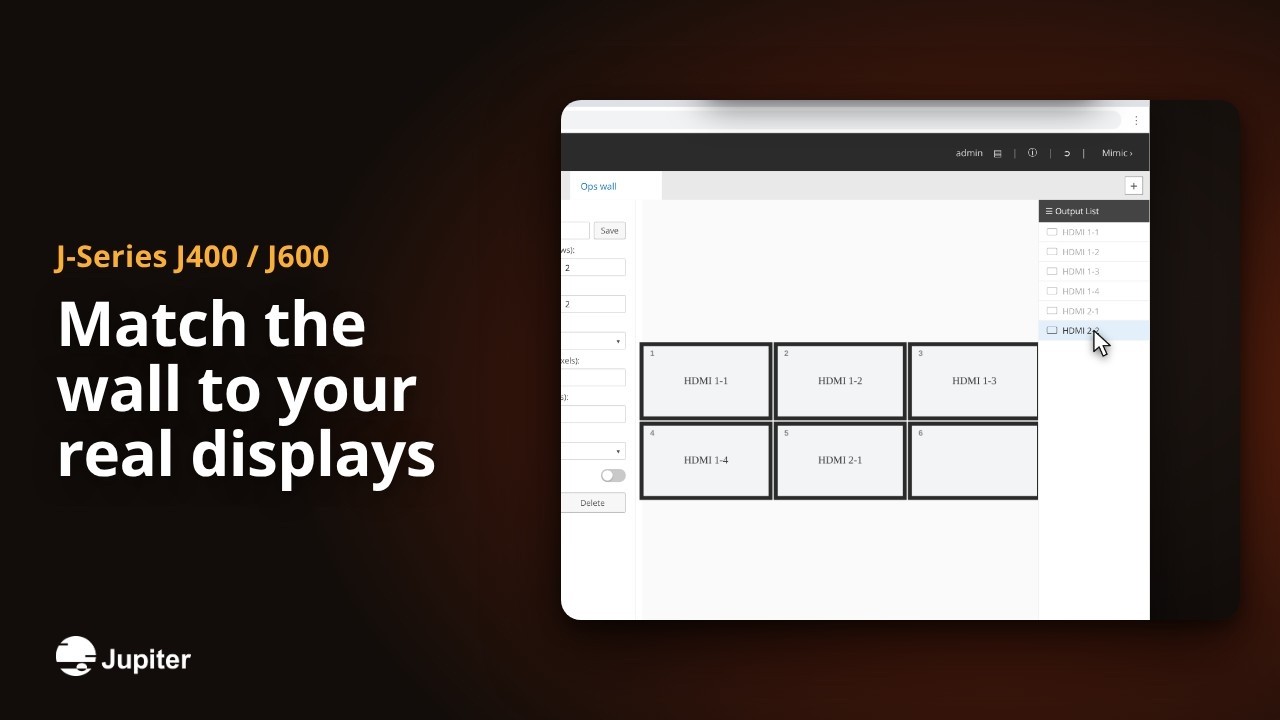 1:06
1:06Match the wall to your real displays
Describe the wall once, columns, rows, outputs and bezels, and every layout lands exactly on the physical screens.
Watch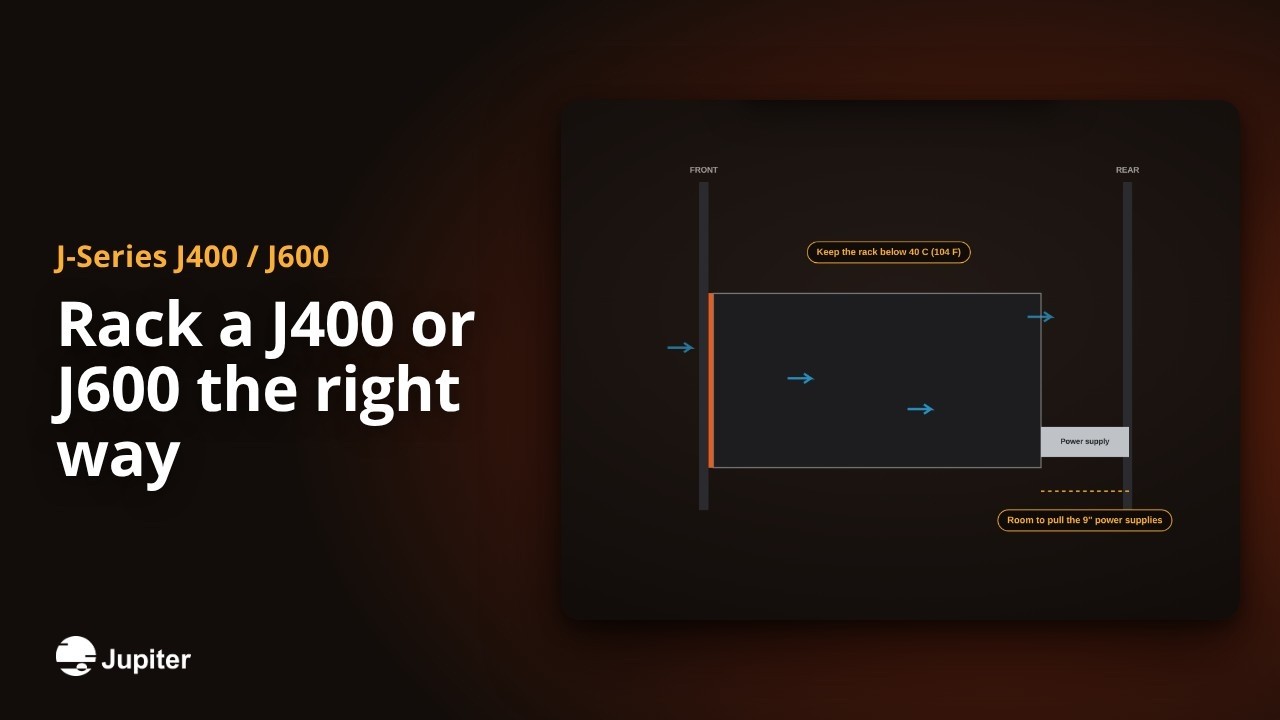 1:04
1:04Rack a J400 or J600 the right way
From the carton to the first picture: secure the rack, mount the chassis, give it air, power, ground and a network.
Watch 1:03
1:03Back up and restore a J-Series in one click
Save the whole system configuration, keep a copy on your PC and bring everything back in one click if something goes wrong.
Watch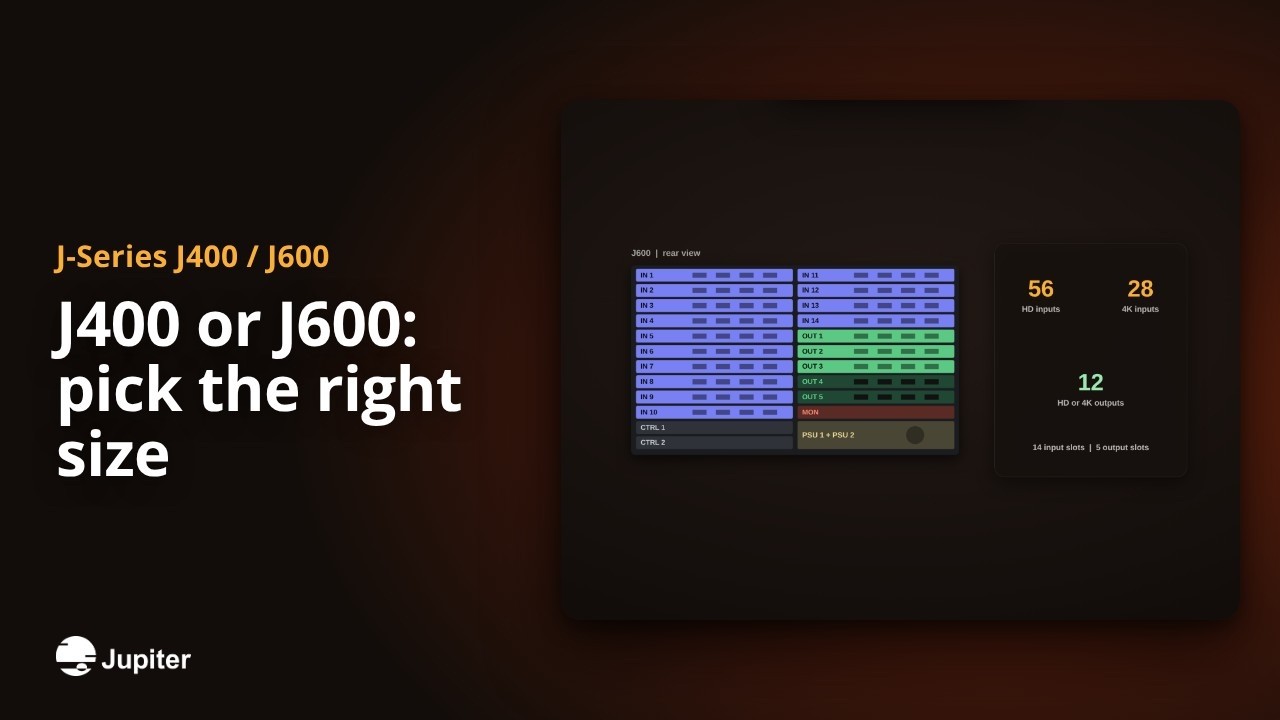 1:06
1:06J400 or J600: pick the right size
Two chassis, the same LightSpeed technology. Choose by how many sources and displays your control room needs.
Watch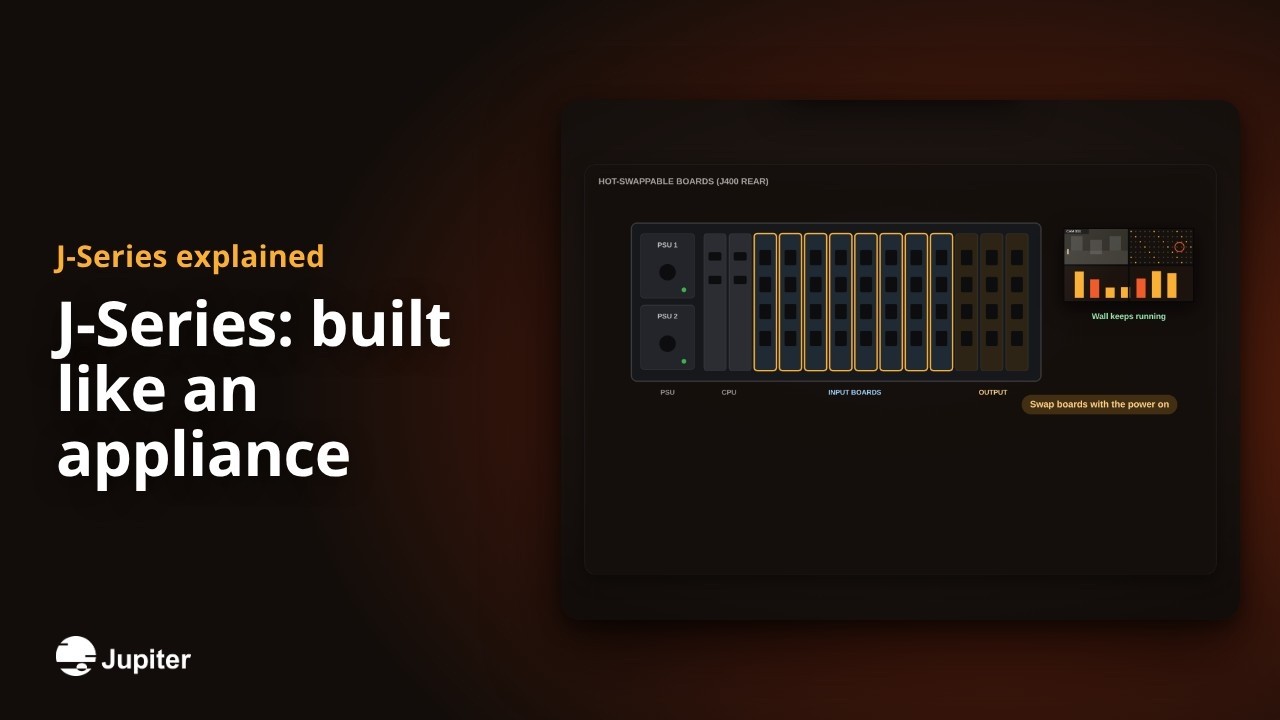 1:04
1:04J-Series: built like an appliance
J-Series processors are hardware, not PCs, which is why they switch fast and keep running for years.
WatchMore screens for less
 1:13
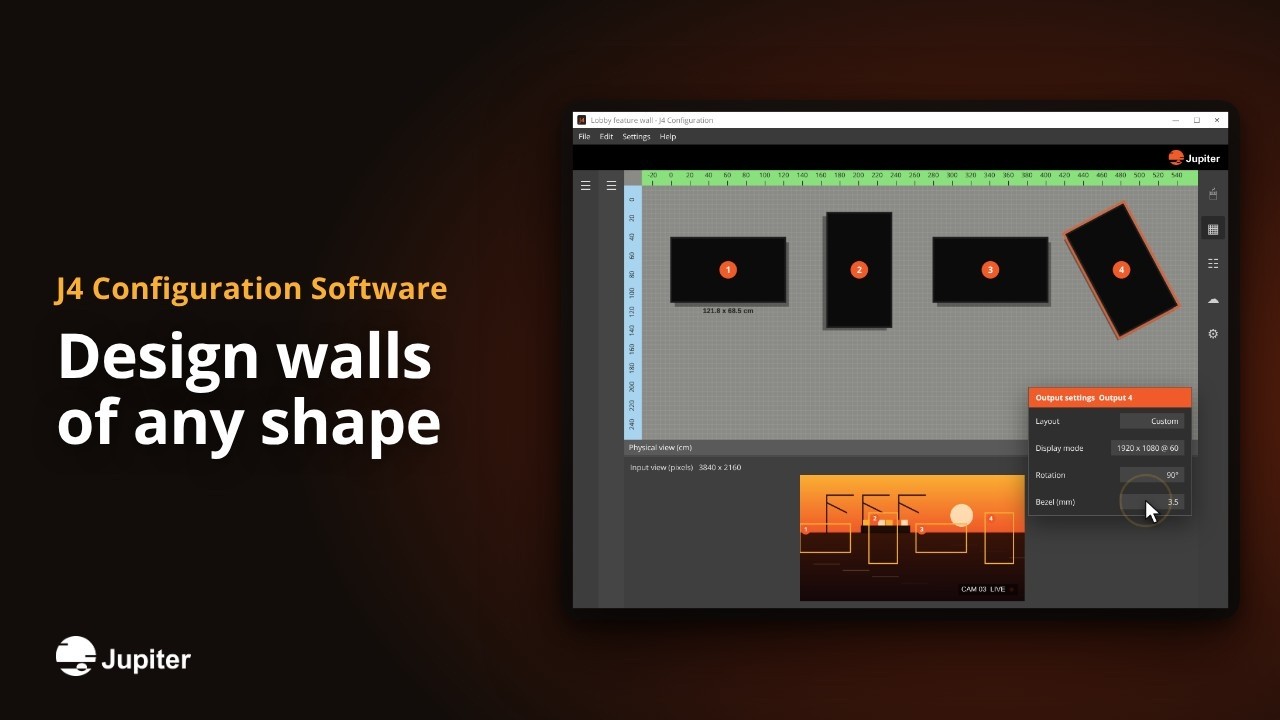
1:13Design walls of any shape
Lay out displays in any position, turn them to portrait, map the image across them and send it to the J4 in a few clicks.
Watch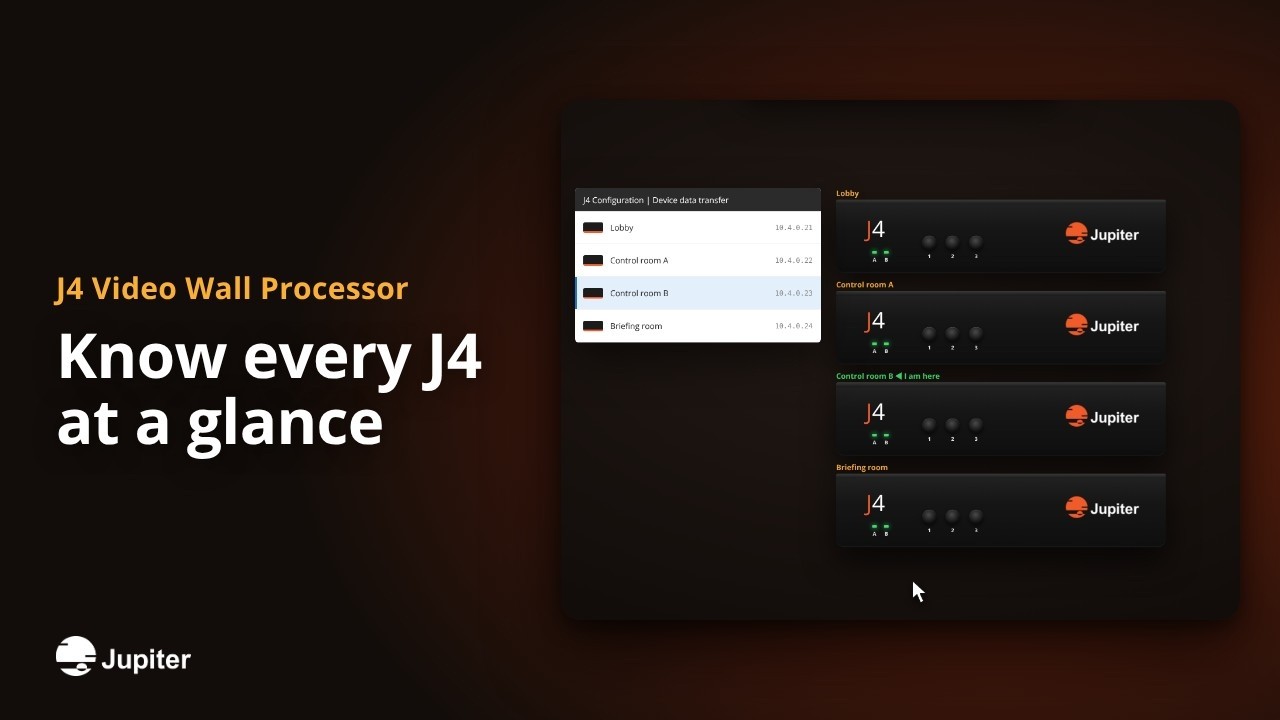 1:02
1:02Know every J4 at a glance
One button shows each unit's full status on the wall, the LEDs tell you the rest, and I-am-here points out the right box in the rack.
Watch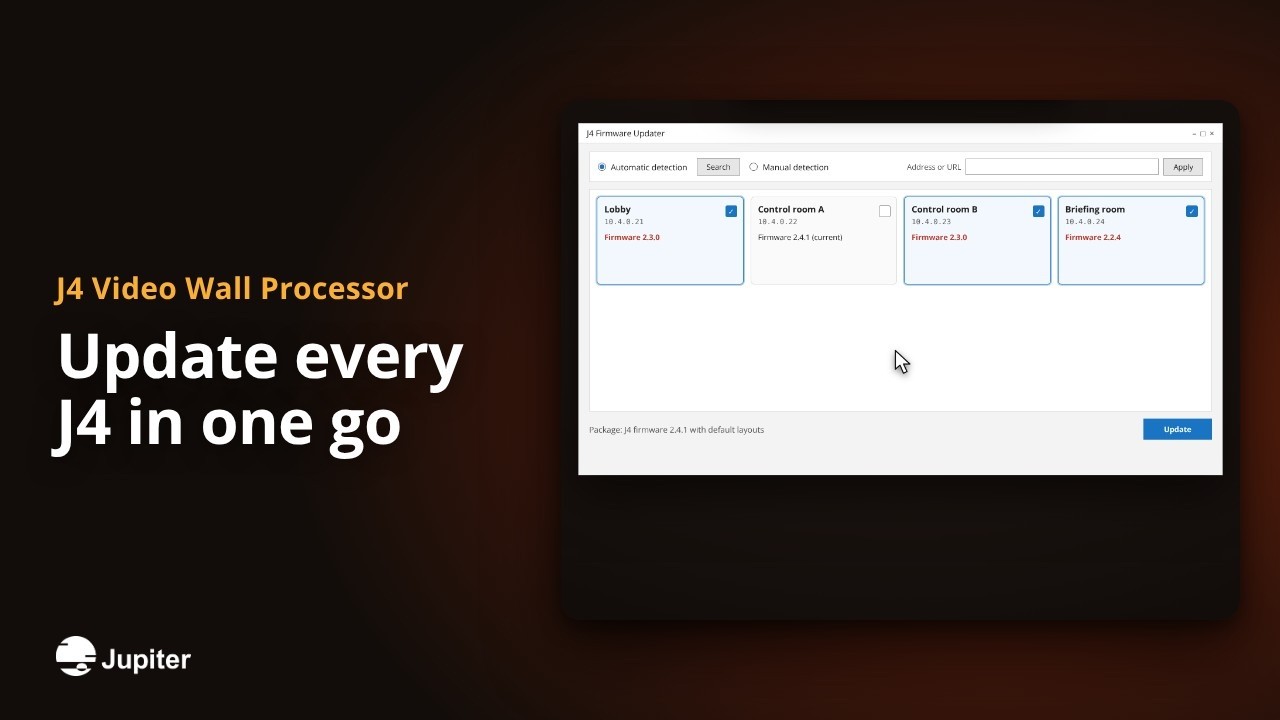 1:03
1:03Update every J4 in one go
The J4 Firmware Updater finds your units, picks the ones that need it and updates them together, with the default layouts included.
Watch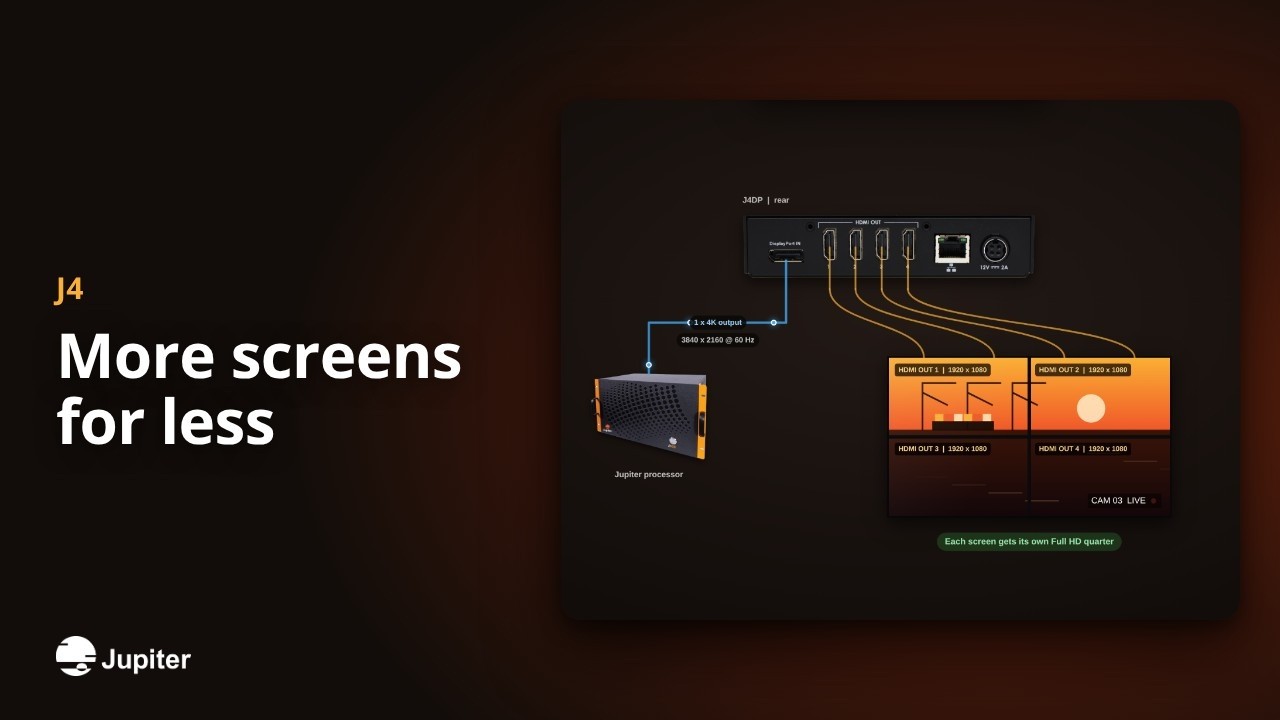 1:04
1:04More screens for less
J4 turns one 4K processor output into up to four Full HD displays, so a bigger wall needs fewer output boards.
WatchAny source, any screen, anywhere
 1:12
1:12One keyboard for the whole control room
Keep every computer in the server room and drive any of them from the video wall or a workstation, with no software to install.
Watch 1:10
1:10Grow your system one node at a time
Add inputs, outputs and switches wherever you need them. PixelNet finds every node on its network and puts it to work.
Watch 1:04
1:04Automate PixelNet with plain text commands
A simple text protocol over Telnet lets any control system query walls, load layouts and style windows on PixelNet.
Watch 1:04
1:04Any source, any screen, anywhere
PixelNet turns every source and every display into a node on one network, so a building, a campus or a whole city works as one video wall system.
Watch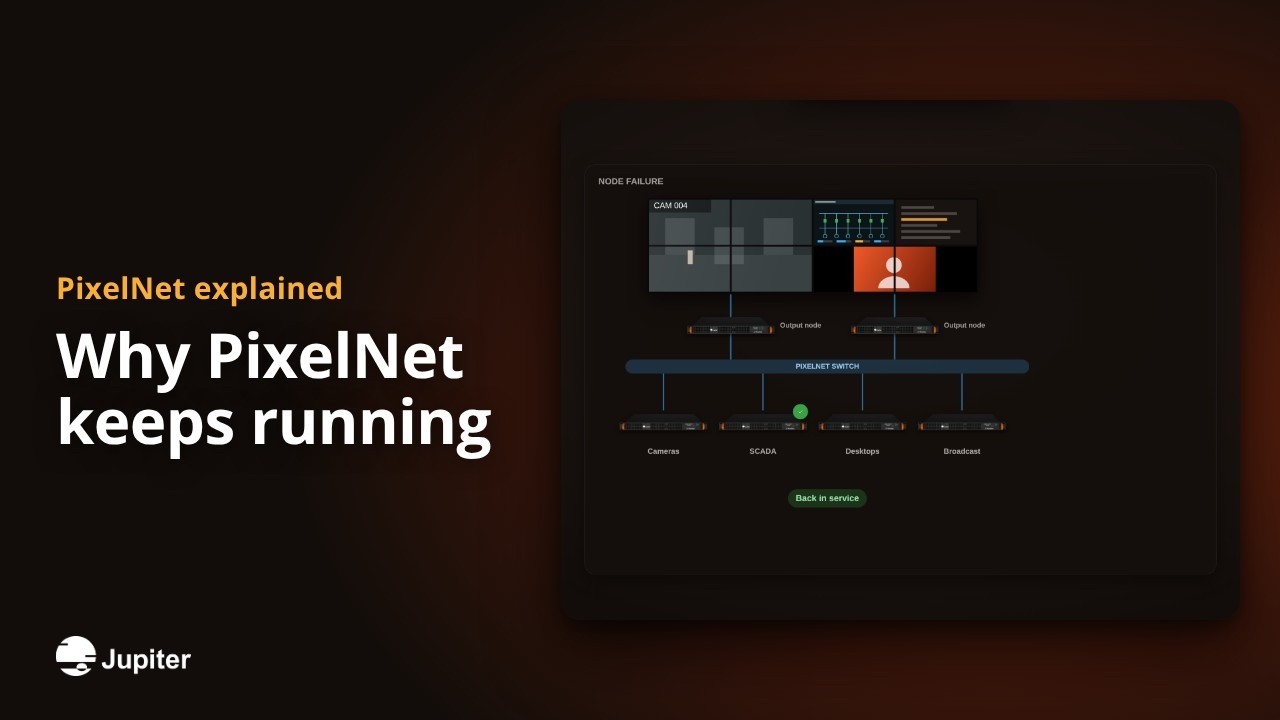 1:04
1:04Why PixelNet keeps running
PixelNet is built from independent nodes and an optional standby server, so one failure does not take the wall down.
Watch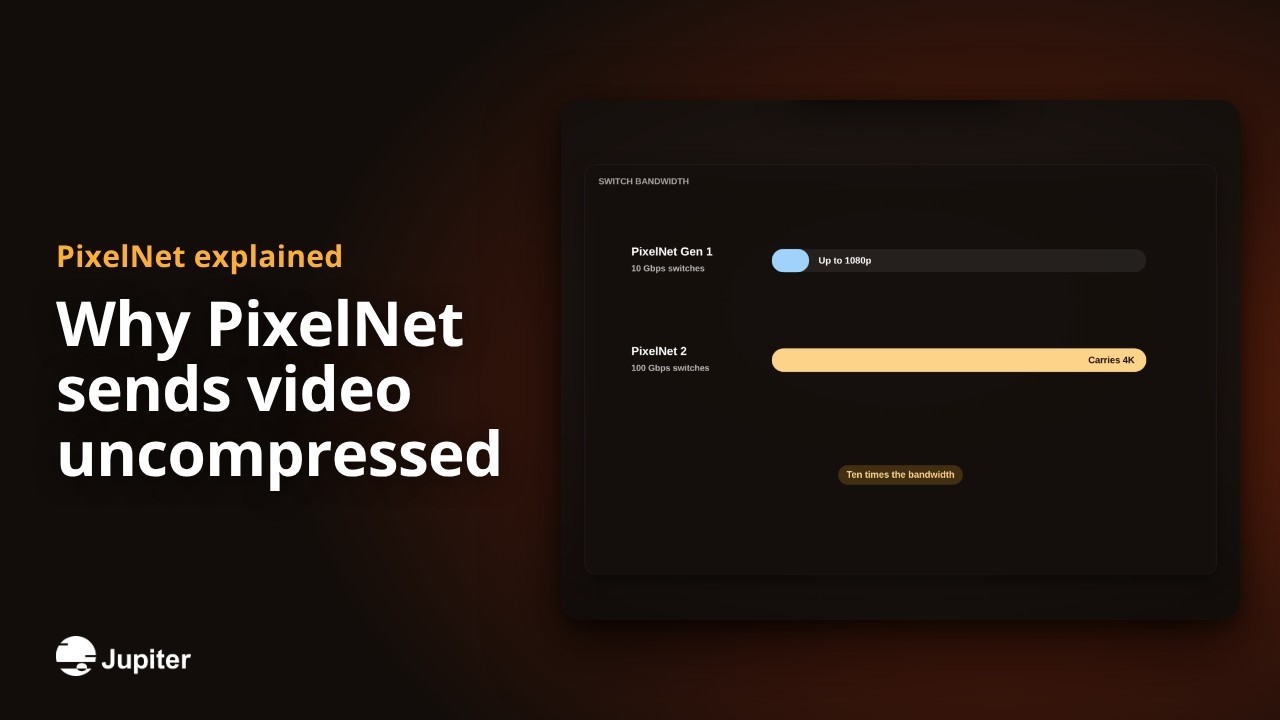 1:04
1:04Why PixelNet sends video uncompressed
PixelNet moves every pixel as it is, so what reaches the wall looks exactly like the source.
WatchAny source over IP
 1:06
1:06Find encoders on any subnet
Encoders on your subnet appear on their own. For everything else, scan a list or a whole range and give each one a fixed address.
Watch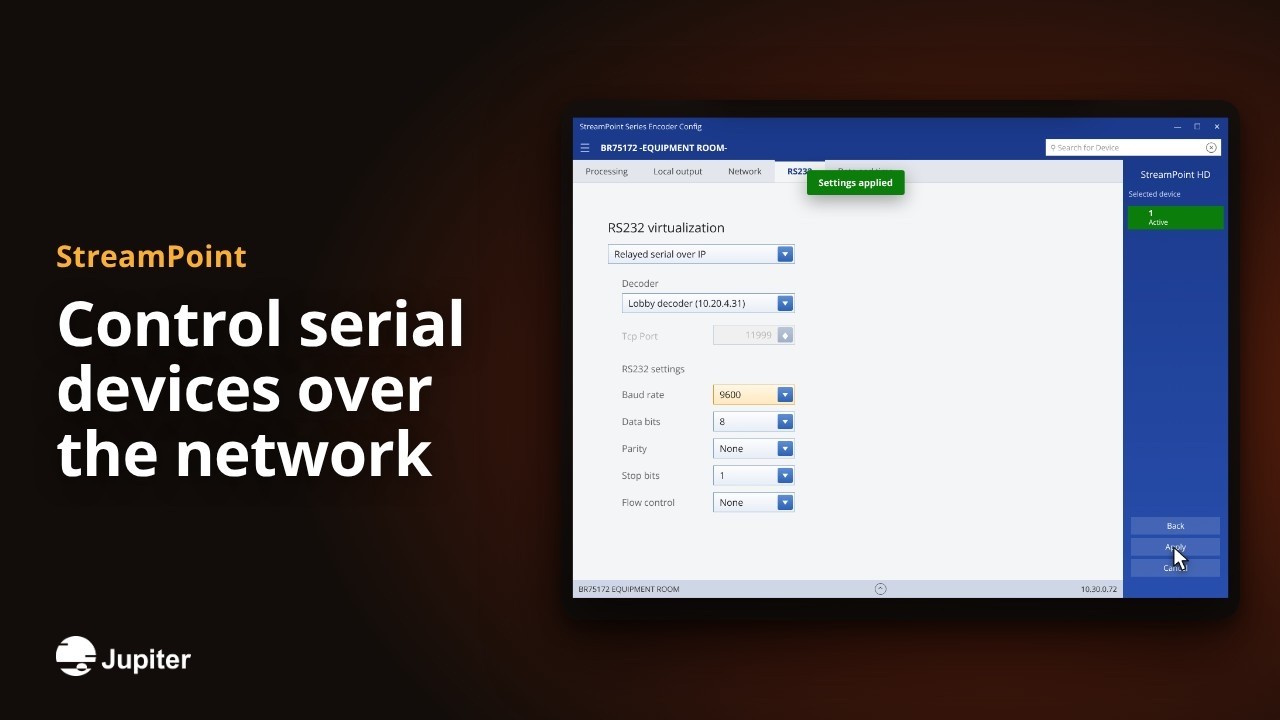 1:12
1:12Control serial devices over the network
Send RS232 commands to a display across the building, or straight from any system on your network. No long serial cables.
WatchNative 5K, ultrawide
 1:13
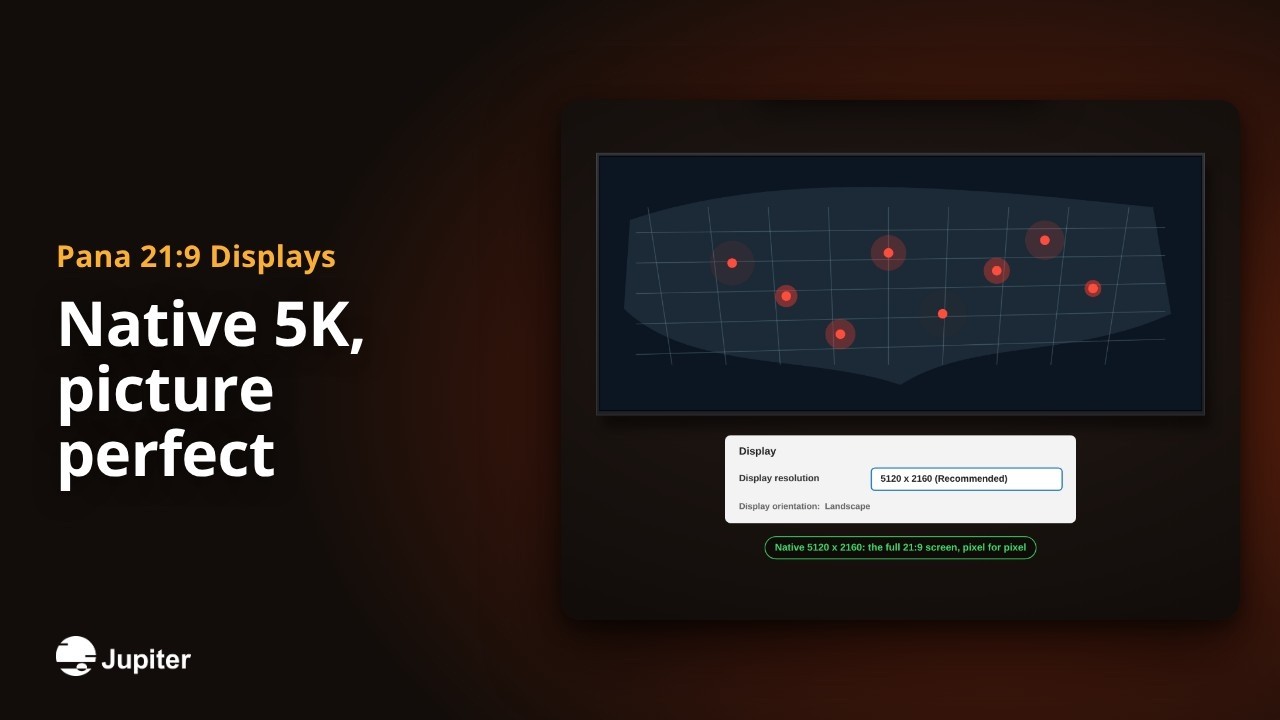
1:13Native 5K, picture perfect
5120 x 2160 pixels in a true 21:9 shape. Here is how to feed it so every source fills the whole screen, sharp and in shape.
Watch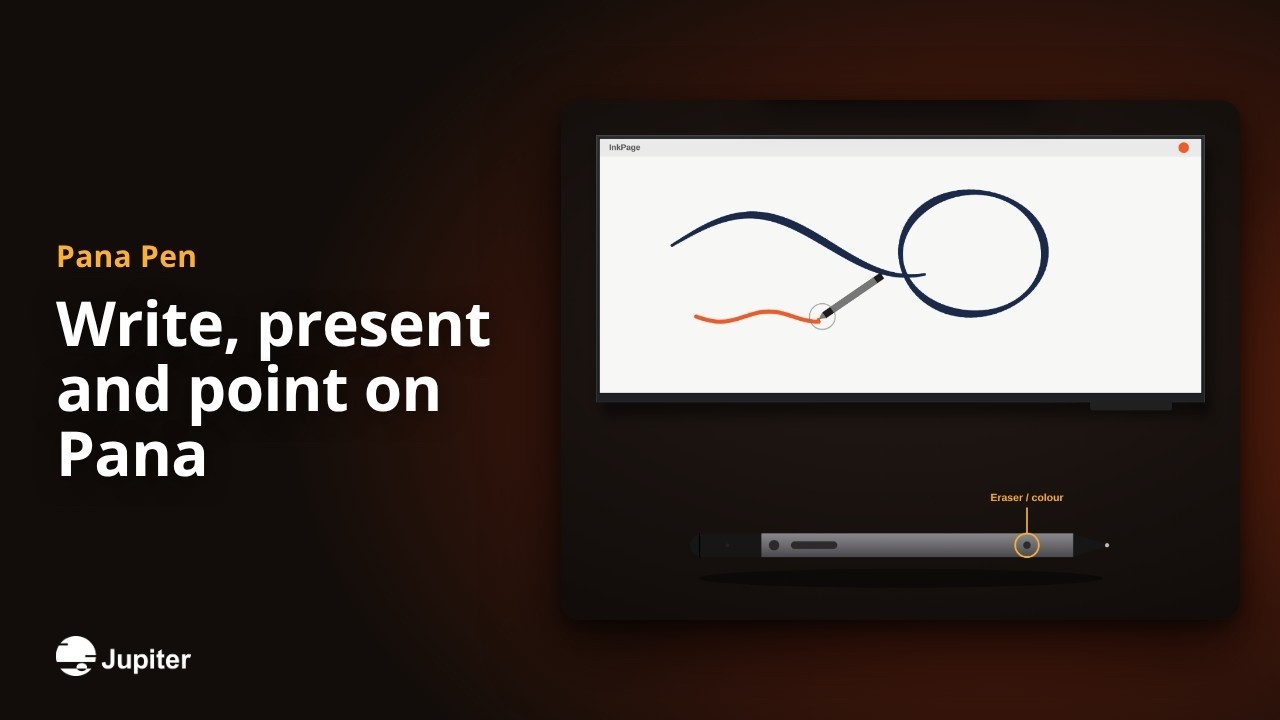 1:12
1:12Write, present and point on Pana
An active pen for Pana touch displays: natural ink with 4096 pressure levels, slide control from across the room and smart on-screen pointers.
Watch 1:14
1:14Control Pana from any system
Power, inputs, volume, mute and status, all over RS232 or IP. Test every command in PanaConnect, then drop it into your control system.
Watch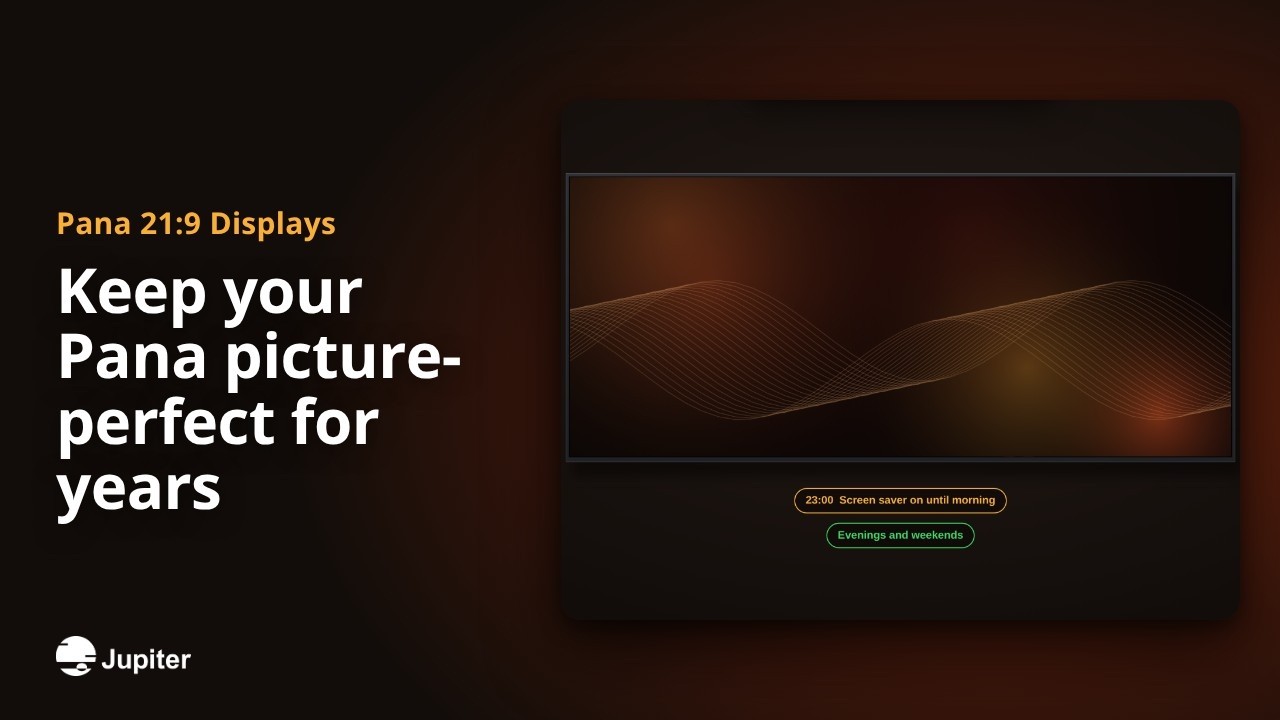 1:04
1:04Keep your Pana picture-perfect for years
Image retention comes from the same static image left on for weeks. A few simple habits keep every Pana looking new.
Watch 1:02
1:02Make the Pana Pen write on the right screen
When one computer drives a Pana and a second screen, Multiscreen Setup tells Windows which display the Pana Pen writes on.
Watch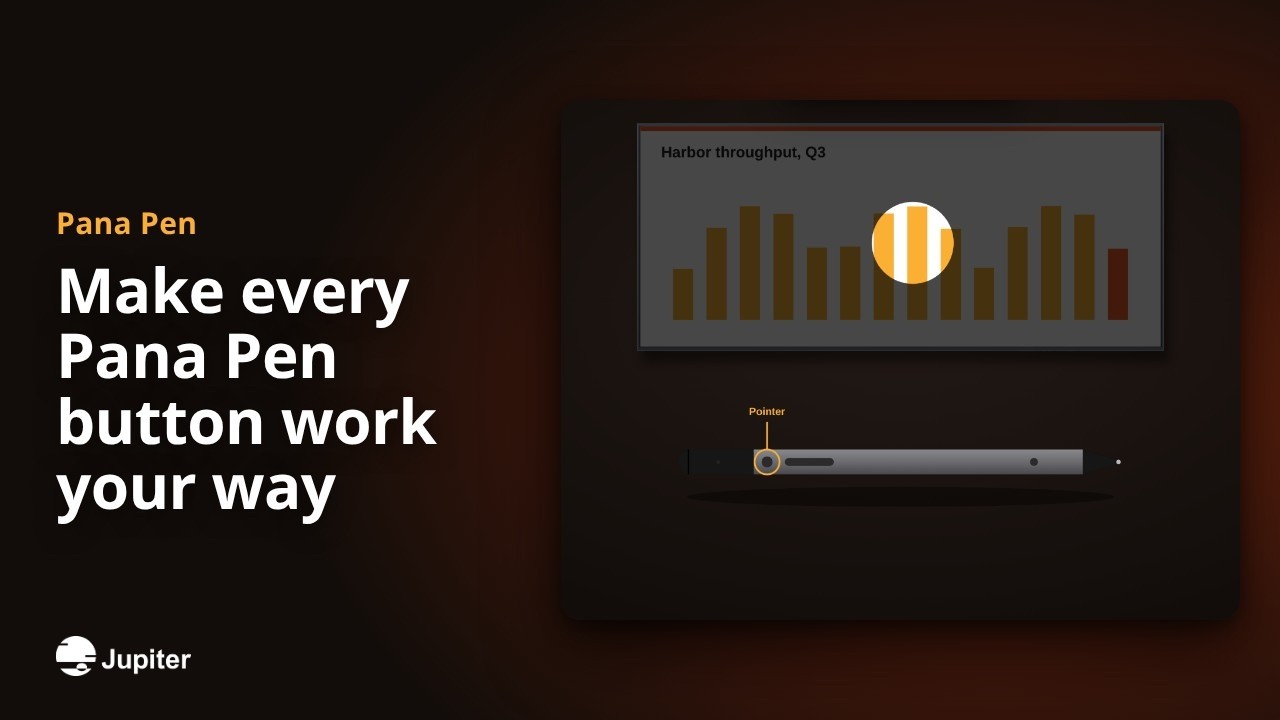 1:02
1:02Make every Pana Pen button work your way
Each button on the Pana Pen has a click, a double-click or a press-and-hold action. Here is what they do, and where to change them.
Watch 1:04
1:04What is Pana?
Pana is Jupiter's family of 21:9 ultrawide displays, built for teams that need more on screen and less in the way.
Watch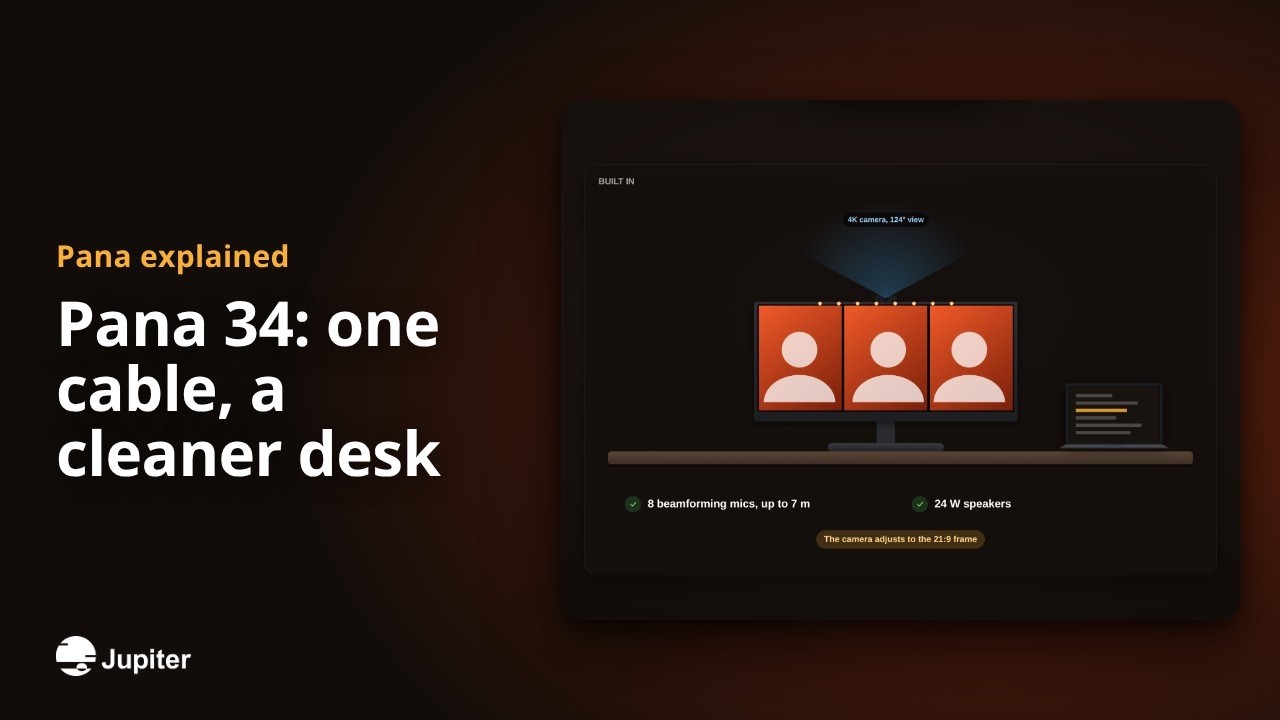 1:04
1:04Pana 34: one cable, a cleaner desk
The Pana 34 puts a 21:9 screen, a 4K camera, microphones, speakers and touch on one USB-C cable to your laptop.
Watch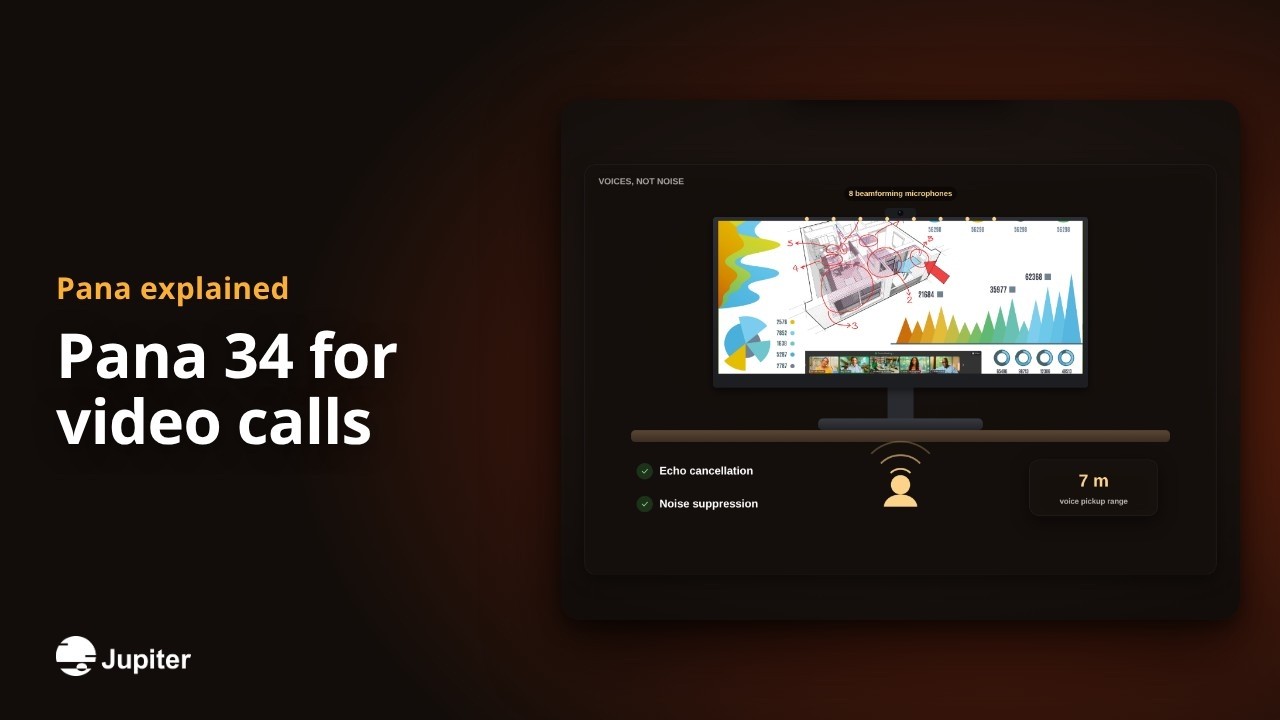 1:04
1:04Pana 34 for video calls
A 4K camera, eight microphones and real speakers are built into the Pana 34, so every call looks and sounds right.
Watch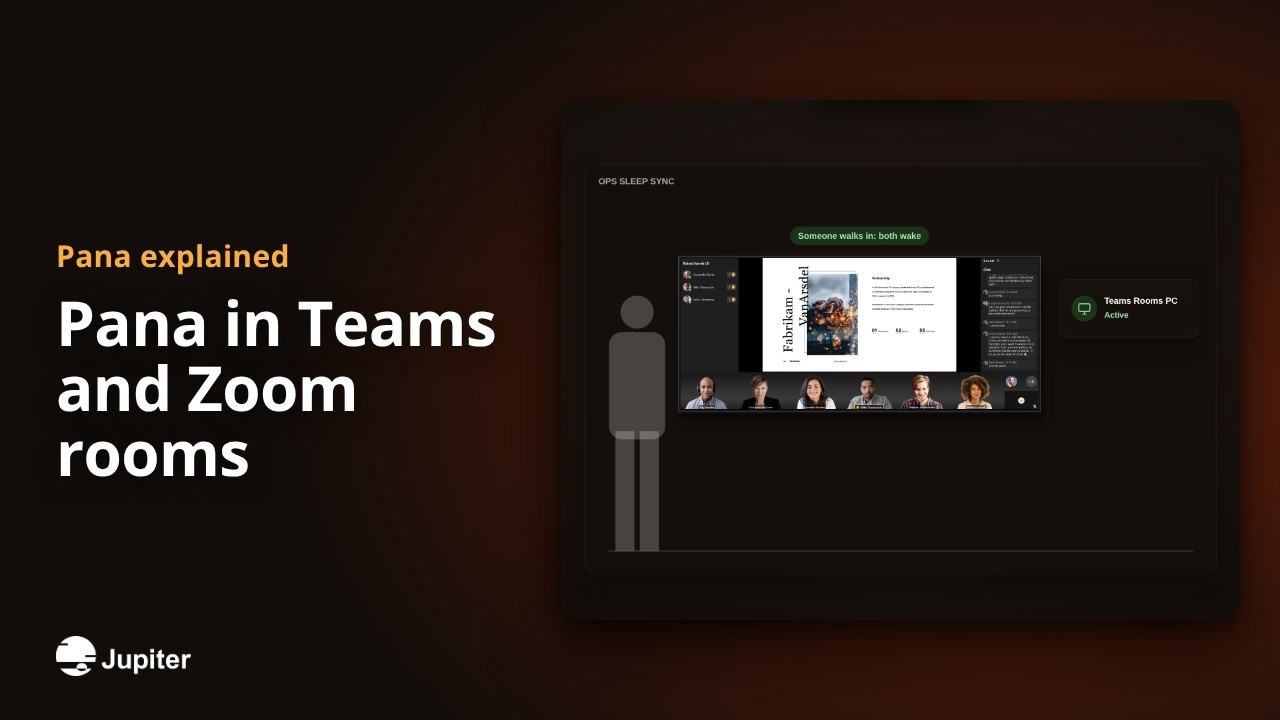 1:04
1:04Pana in Teams and Zoom rooms
The 21:9 Pana fits the way modern meeting rooms work, and it sleeps and wakes with the room PC.
Watch 1:04
1:04Pana with Q-SYS, Extron and Crestron
Pana displays take 40+ API commands over the network or serial, so your room control system can run them.
Watch 1:04
1:04One 21:9 display or two 16:9 screens?
Many rooms pair two 16:9 screens. A single 21:9 Pana does the same job with no seam in the middle.
Watch 1:04
1:04Lock down your Pana
For rooms where only approved people and systems should control the display, Pana gives you simple ways to lock it down.
Watch 1:04
1:04What is Pana 92CT?
Pana 92CT is a 92-inch 21:9 touch display with Android 13 built in, so teams can write, share and meet without a PC.
Watch 1:04
1:04Pana 92CT: the right port for every device
Pana 92CT puts the ports people use most on the front, and the rest on the side panel.
WatchFine-pitch LED, from install to care

See it live on your project
Talk to our team for a live demo of any Jupiter product, or browse case studies and guides.